Nano Banana 2.1 Guide: Sharper Text and Wider Formats for Fewer Credits
A practical Nano Banana 2.1 guide covering what changed from Nano Banana 2, Nenis credit prices from 5 credits, 1K-to-4K output, 14 aspect ratios, search, Planning, tested prompts, and the October 29 retirement of Nano Banana 2.
Nano Banana 2.1 is now the Google model to start with in Nenis. It renders text more reliably, handles very wide formats without repeating itself, and costs 5 credits at 1K where Nano Banana 2 cost 8.
Google released it on October 6, 2026 as gemini-nano-banana-2.1, and it retires Nano Banana 2 on October 29, 2026. Both models are in Nenis until then, so you can compare them on your own work before the old one goes.
The practical decision: use 2.1 for everyday creation and editing. Move to Nano Banana Pro when you need more than four results in one run, and to Nano Banana 2 Lite when a cheap 512px or 1K draft is all you need.
What changed from Nano Banana 2
Google describes 2.1 as an update to its Flash image model across the board. The changes that matter for real work are:
- Better text and infographics. Google's documentation calls out improved text rendering and more accurate infographic layout.
- Wide formats without tiling. Google says it fixed the repeated-pattern artifacts that could appear at
1:4,4:1,1:8, and8:1. - More consistent references. Up to 14 reference images, with Google documenting up to 10 objects and up to 4 characters kept consistent.
- Half the image cost. Google charges $30 per million image tokens, against $60 for Nano Banana 2.
Google's model card scores 2.1 against both Nano Banana 2 and Nano Banana Pro:
| Google evaluation | Nano Banana 2.1 | Nano Banana 2 | Nano Banana Pro |
|---|---|---|---|
| Overall text-to-image preference (Elo) | 1050 | 990 | 935 |
| Infographic design (Elo) | 1048 | 961 | 912 |
| Infographic factuality | 0.521 | 0.179 | 0.265 |
| Multi-character consistency (Elo) | 1106 | 978 | 1011 |
| Multi-reference editing (Elo) | 1066 | 988 | 989 |
The 2.1 column is Google's run with thinking. Without it, 2.1 still leads every row, but by less. The biggest gap is infographic factuality, which falls to 0.328. That is the case for the Careful Planning setting described below.
Nano Banana 2.1 settings in Nenis
| Control | Available in Nenis |
|---|---|
| Output sizes | 1K, 2K, and 4K |
| Aspect ratios | 14, from 1:8 tall to 8:1 wide: 1:1, 1:4, 1:8, 2:3, 3:2, 3:4, 4:3, 4:1, 8:1, 4:5, 5:4, 9:16, 16:9, and 21:9 |
| Reference images | Up to 14 |
| Results per run | 1 to 4 |
| Search | Optional web and image search |
| Planning | Quick or Careful |
| Format | JPG |
There are two differences from Nano Banana 2. 512px is gone, because Google does not offer it on 2.1. Google also added a tall 9:21 ratio, which Nenis does not offer yet.
Planning sets how long the model works the prompt out before it draws. Quick is the default and suits most images. Careful is worth it for layouts with many parts, such as infographics, diagrams, and step-by-step instructions. It is slower: the Careful infographic below took about 40 seconds, against 12 to 16 seconds for the other three images.
Nano Banana 2.1 credits
| Output size | Nano Banana 2.1 | Nano Banana 2 |
|---|---|---|
| 512px | Not available | 6 |
| 1K | 5 | 8 |
| 2K | 7 | 12 |
| 4K | 11 | 18 |
Those prices are per image. Two options add to them:
- Reference images add about 0.23 credits each. Google bills every reference photo as input, and on 2.1 input costs three times what it did on Nano Banana 2, so Nenis now counts it.
- Search adds about 1.94 credits per image, because Google bills every search-grounded request.
Nenis does not round each part separately. It adds the exact parts together and rounds up once per image:
| Example | Credits per image |
|---|---|
| 1K, no references | 5 |
| 1K with one reference | 5 |
| 1K with search | 7 |
| 2K with four references | 8 |
| 1K with fourteen references | 8 |
| 4K with search | 13 |
Asking for four results multiplies the per-image price by four. The live estimate in Create is always the final price before you generate.
Where Nano Banana 2.1 earns its place
Nenis made the four images below with Nano Banana 2.1 on October 6, 2026, using the same settings the app sends. Each one is the first and only attempt.
Product shots with exact text
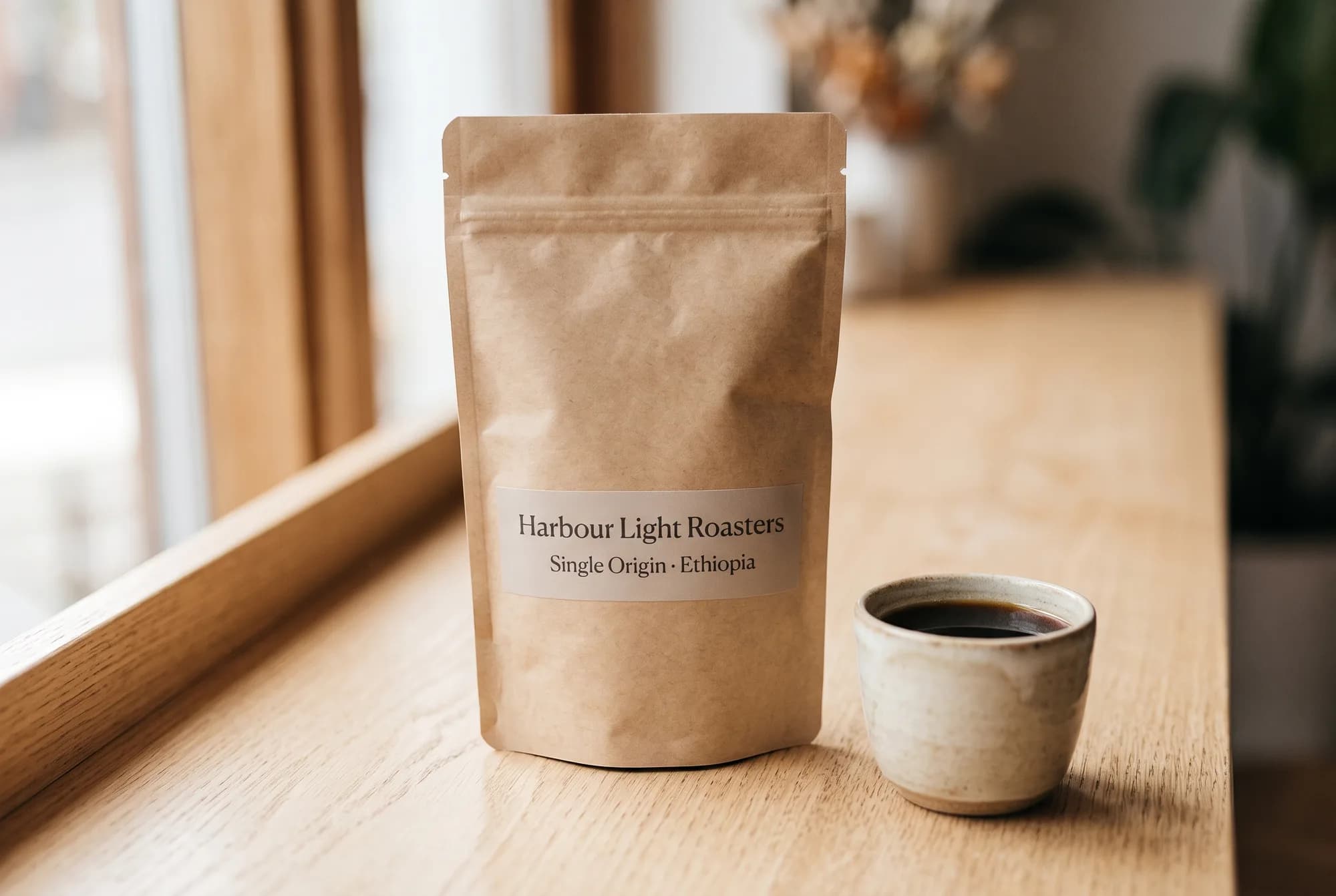
The hero image at the top of this guide tests the thing Flash models used to get wrong: short label text on a product.
Create a premium product photograph of a matte kraft-paper coffee bag standing
on a light oak counter beside a small ceramic cup of black coffee. Soft window
light from the left, shallow depth of field, calm neutral palette.

The bag's front label reads exactly "Harbour Light Roasters" on the first line
and "Single Origin · Ethiopia" on the second line, in clean modern typography.
Render each line exactly once.

Do not add any other text, logos, or watermarks.
Settings: 3:2, 2K, Quick. 7 credits. Both lines came out letter for letter, including the middle dot, and nothing extra was added.
Website banners at 8:1

Create an ultra-wide website header photograph of a small Mediterranean coastal
town at dusk. Pastel houses step down a hillside to a calm harbour with fishing
boats, and warm window lights begin to glow under a deep blue sky.

Make it one continuous scene from edge to edge, with no repeated buildings and
no visible seams. Leave calm sky in the upper third for a headline.

Do not add any text, logos, or watermarks.
Settings: 8:1, 2K, Quick. 7 credits. The result is 5,856 × 704 pixels: one continuous town, with no copied buildings and no visible join. Ultra-wide ratios are exactly where tiling used to appear.
Infographics built from your own facts
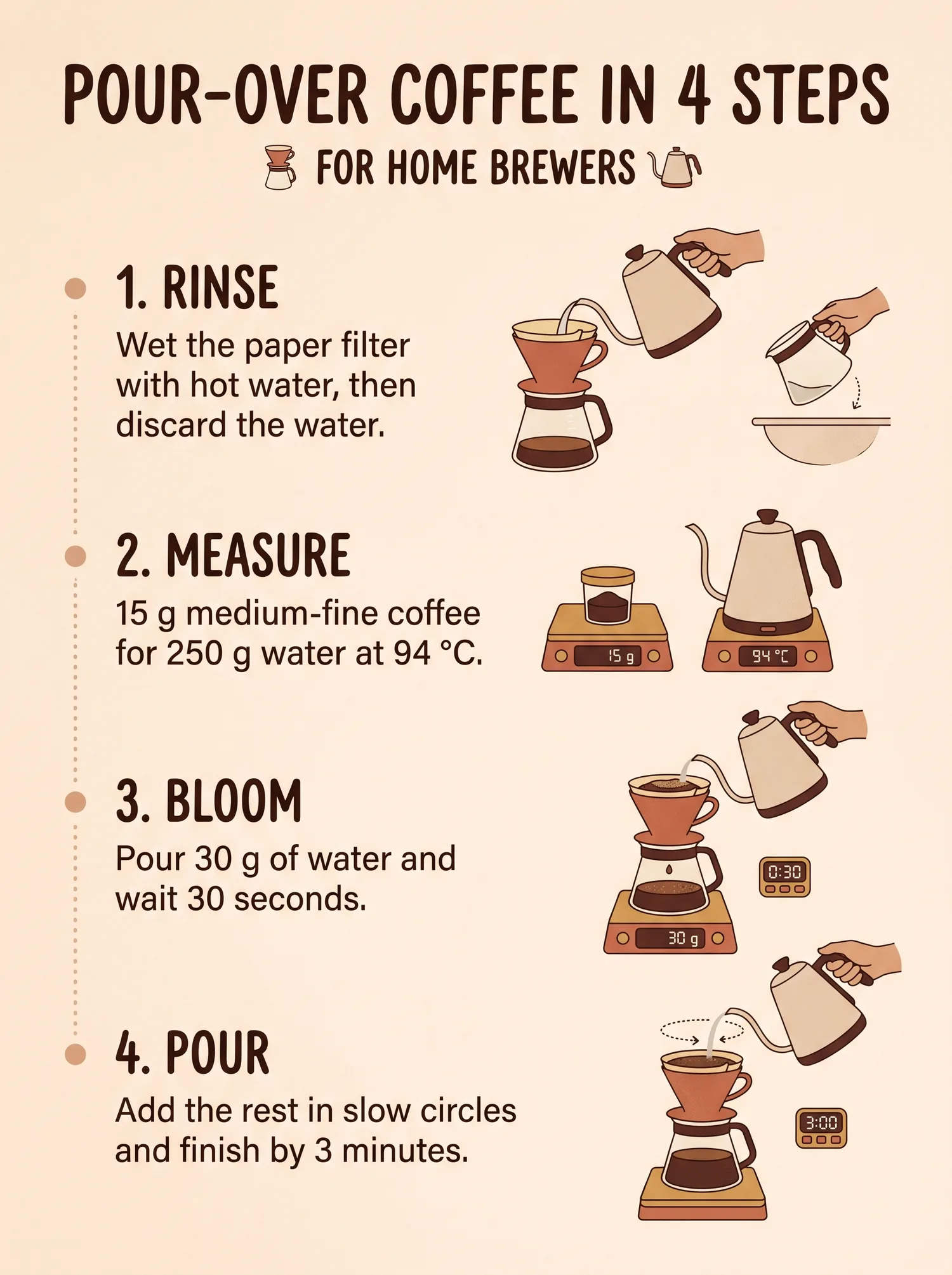
Create a vertical educational infographic titled "Pour-over coffee in 4 steps"
for home brewers.

Use only these approved steps:
1. Rinse: Wet the paper filter with hot water, then discard the water.
2. Measure: 15 g medium-fine coffee for 250 g water at 94 °C.
3. Bloom: Pour 30 g of water and wait 30 seconds.
4. Pour: Add the rest in slow circles and finish by 3 minutes.

Use one numbered illustration per step, a clear top-to-bottom reading order, and
a warm minimal palette. Use only the supplied wording. Do not invent extra
steps, numbers, brand names, or logos.
Settings: 3:4, 2K, Careful. 7 credits. Every supplied line came out word for word, and the numbers on the scales and timers match the text. Two details still needed a human eye. The model turned "for home brewers" into a subtitle nobody asked for, and the first step shows coffee already in the carafe before anything has been brewed. Image generation is not fact-checking: supply the facts as a closed list, then proofread the result.
Editing with a reference photo
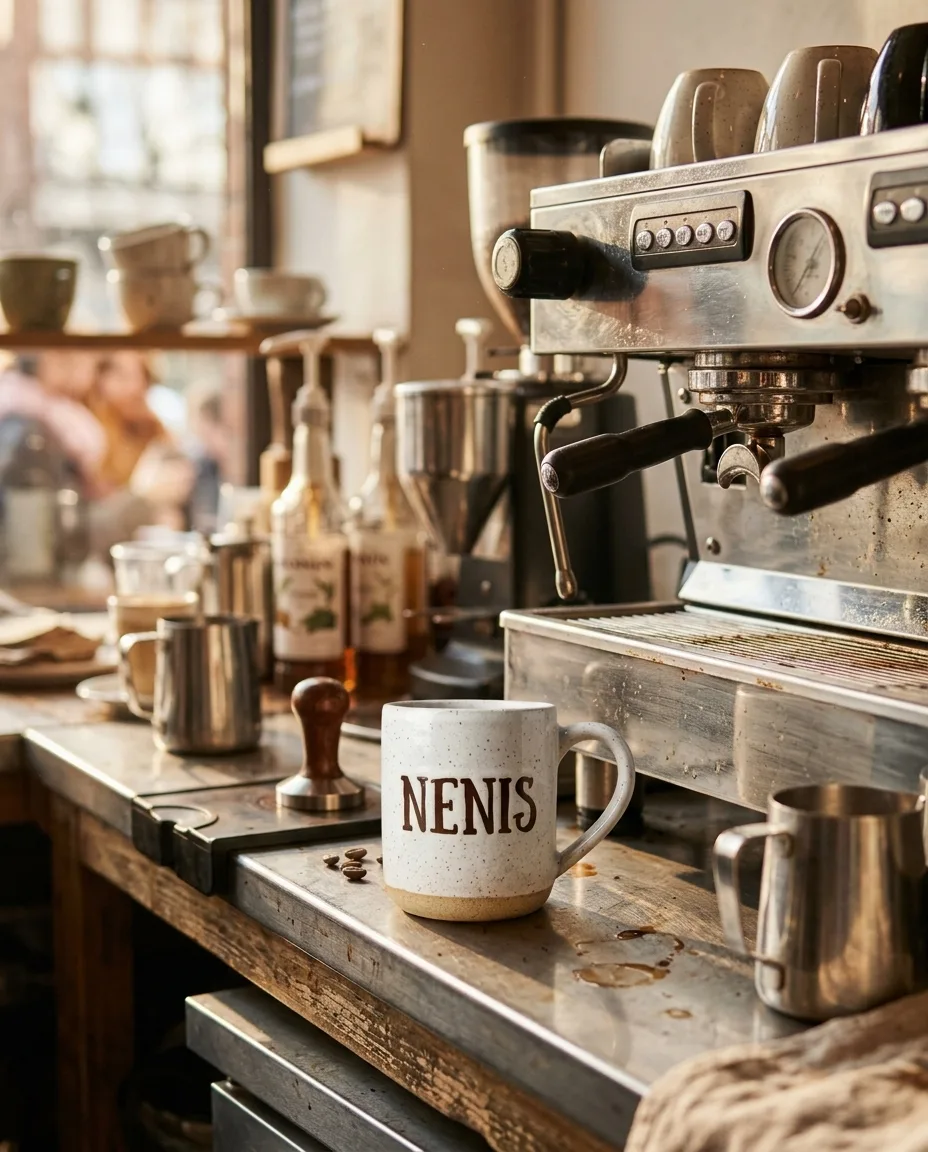
Image 1 is a ceramic mug. Place this exact mug on a busy café counter next to an
espresso machine, in warm morning light, photographed from a three-quarter angle.

Keep the speckled glaze, the unglazed base, the handle shape, and the word
"NENIS" exactly as they appear in image 1. Do not add any other text or logos.
Settings: 4:5, 1K, Quick, one reference image (an earlier Nano Banana 2.1 image of the same mug). 5 credits. The glaze, the bare clay base, and the lettering style carried over from the reference. The syrup bottles behind the mug show the limit, though: their small labels are unreadable, which matches Google's own note about small text.
A prompt structure that works
Create: [the asset and where it will be used].
Subject: [who or what is in the image].
Composition: [framing, angle, and where to leave empty space].
Style: [photographic or illustrative direction, light, and palette].
References: [what each uploaded image controls, by number].
Exact text: "[approved wording only]", rendered exactly once.
Avoid: [likely mistakes and unwanted additions].
A few habits make the biggest difference:
- Quote every piece of text and say how many times it should appear.
- For wide ratios, ask for one continuous scene and say where to leave space for copy.
- Give each reference a numbered job. "Image 1 controls the product; image 2 controls only the lighting" beats "combine these".
- Use Search only when the image depends on real or current facts. It adds about 2 credits per image.
For more structures, see How to write AI image prompts that work and the reference-image guide.
Nano Banana 2.1, Pro, or Lite?
| Nano Banana 2.1 | Nano Banana Pro | Nano Banana 2 Lite | |
|---|---|---|---|
| Credits at 1K | 5 | 16 | 4 |
| Largest size | 4K for 11 | 4K for 28 | 1K |
| Results per run | Up to 4 | Up to 10 | Up to 4 |
| Aspect ratios | 14, up to 8:1 |
10, up to 21:9 |
10, up to 21:9 |
| Search | Web and image | Web | None |
| Start here for | Everyday creation, text, infographics, and wide formats | Large batches and established Pro workflows | The cheapest drafts, including 512px for 3 credits |
On Google's scores, 2.1 beats Pro on every test listed above, at under half the price at every size. That makes 2.1 the sensible default. Pro is still the choice when you need up to ten results in one run, or when your existing Pro prompts already produce exactly what you need. For a final hero image, it costs little to run the same prompt on both and keep the better one.
For a side-by-side of every model in Nenis, see the image model comparison.
Moving from Nano Banana 2
- Nano Banana 2 stays in Nenis until October 29, 2026. Google shuts the model down that day, and Nenis removes it before then.
- 2.1 is the new default. If Create still shows Nano Banana 2 for you, it stays selected until it is removed, and then Create switches you to 2.1. Pick 2.1 from the model menu to switch now.
- Templates already run on 2.1. Templates that used Nano Banana 2 moved over at the same 2K size.
- Your images stay where they are. Everything you made with Nano Banana 2 remains in your gallery.
- If you used 512px drafts, switch to Nano Banana 2 Lite at 3 credits, or to 2.1 at 1K for 5.
Re-run your favourite Nano Banana 2 prompts on 2.1 now, while you can still compare the two models side by side. The original Nano Banana 2 guide remains available for reference.
Limits to know before generating
- Small text is still weak. Google's model card lists small text, long paragraphs, and page-length text as known problems. Keep on-image copy short and check it at full size.
- Left and right can get mixed up. Google notes occasional confusion about where things are in the frame. If placement matters, describe it in more than one way.
- 3D reasoning is limited. Complex perspective, mechanical parts, and objects that must fit together can still go wrong.
- Built-in knowledge goes out of date. Turn on Search when an image depends on current products, places, or events.
- Four results per run. Use Nano Banana Pro if you need up to ten at once.
- Every image carries a SynthID watermark. Google adds an invisible SynthID mark to every generated image.
The recommendation
Make Nano Banana 2.1 your first choice for Google image work in Nenis. Explore at 1K on Quick for 5 credits. Move to 2K or 4K when the delivery format needs the pixels, and switch Planning to Careful for infographics and other layouts with many parts.
Reach for Nano Banana Pro when a run needs more than four results, and for Nano Banana 2 Lite when the image is a throwaway draft. Before October 29, re-test the Nano Banana 2 prompts you rely on, so the switch holds no surprises.
Sources and image credits
- Google: Gemini Nano Banana 2.1 model page
- Google DeepMind: Nano Banana 2.1 model card
- Google: Gemini API pricing
- Google: Gemini API image generation guide
All four images were made by Nenis with Nano Banana 2.1 through the Gemini API on October 6, 2026, using the prompts and settings shown. Each is a single first attempt, not a benchmark. The evaluation scores are Google-reported. Google's prices and availability can change. Nenis controls and credit prices were checked against the production catalogue on October 6, 2026.