How to Remove People From a Photo Without Ruining the Background
A practical AI workflow for removing tourists, strangers, or photobombers while preserving the main subject, perspective, lighting, and natural background detail.
The safest way to remove a person from a photo is to tell the editor who must stay, who should disappear, and what must remain unchanged.
That is more reliable than a short prompt such as “remove the people.” A photo may contain a main subject, companions, reflections, shadows, and distant pedestrians. The model needs a clear boundary between the protected photograph and the small areas it is allowed to rebuild.
You can use this preservation-first workflow in Nenis Studio. This guide explains what to ask for and how to judge the result before saving it.
The quick workflow
- Upload one clear source photograph.
- Choose whether to remove background people, distant people only, or everyone except the people you name.
- Describe every person who must remain.
- Add an exception only when the scene is ambiguous.
- Generate one careful edit and inspect every repaired area at full size.
For this workflow, start with GPT Image 2 at High quality because the job depends on instruction following and high-fidelity image input more than creative variation. High is not necessary for every experiment, but it is a sensible choice when a face, outfit, product, or detailed location must survive the edit.
Start with a photo the model can understand
AI removal works best when the people to remove are visually separable from the subject and the scene provides enough surrounding information to reconstruct what is hidden.
A strong source photo has:
- A clear foreground subject or foreground group.
- Background pedestrians who do not cover most of the subject.
- Repeating background information such as paving, walls, foliage, sky, or water.
- Natural lighting that is consistent across the frame.
- Enough resolution to inspect faces, hands, edges, reflections, and textures afterward.
The difficult cases are heavy overlaps, a person covering unique architecture, strong reflections in several surfaces, very shallow depth of field, or a crowd occupying most of the photograph. An AI editor can infer missing pixels; it cannot recover visual information that was never captured.
Use the right removal scope
Think about the edit in one of three scopes because “remove people” can mean very different things.
| Scope | Use it when | What remains protected |
|---|---|---|
| Background people | One subject or group is clearly in front | All clear foreground subjects |
| Distant people only | Nearby companions should stay | Foreground subjects and nearby people |
| Everyone else | You can precisely name the only people to keep | Only the described people |
Use Background people for most travel photographs. Choose Distant people only when friends, family, staff, or passersby near the camera belong in the scene. Use Everyone else only when your keep-description is specific enough to identify every protected person.
Descriptions should use visible facts:
Keep the woman in the yellow coat in the left foreground.Avoid uncertain descriptions such as “keep my friends” because the model does not know your relationships.
Use a preservation-first removal prompt
If you are editing manually in Canvas, use this structure:
Remove every secondary person who is clearly behind the main foreground subject.

People to keep: the woman in the yellow coat in the foreground. Treat her as locked source material. Do not alter her face, expression, hair, body, pose, hands, clothing, sharpness, or position.

Remove the targeted people completely, including body parts, carried items, and only the shadows or reflections clearly associated with them.

Reconstruct only the vacated regions using the surrounding paving, architecture, perspective lines, lighting, shadows, grain, and depth of field.

Preserve the exact crop, camera position, lens perspective, exposure, color, scene geometry, buildings, objects, text, and logos outside the removed areas.

Avoid blur patches, smudges, ghost figures, leftover limbs, floating belongings, repeated textures, warped geometry, new objects, or edits outside the removal areas.
The prompt is long because it separates four jobs: selection, protection, reconstruction, and quality control. Paste the structure into Nenis, then replace the subject description and scene details with what is visible in your photograph.
For more general prompt structure, read How to write AI image prompts that work.
Inspect the repaired background
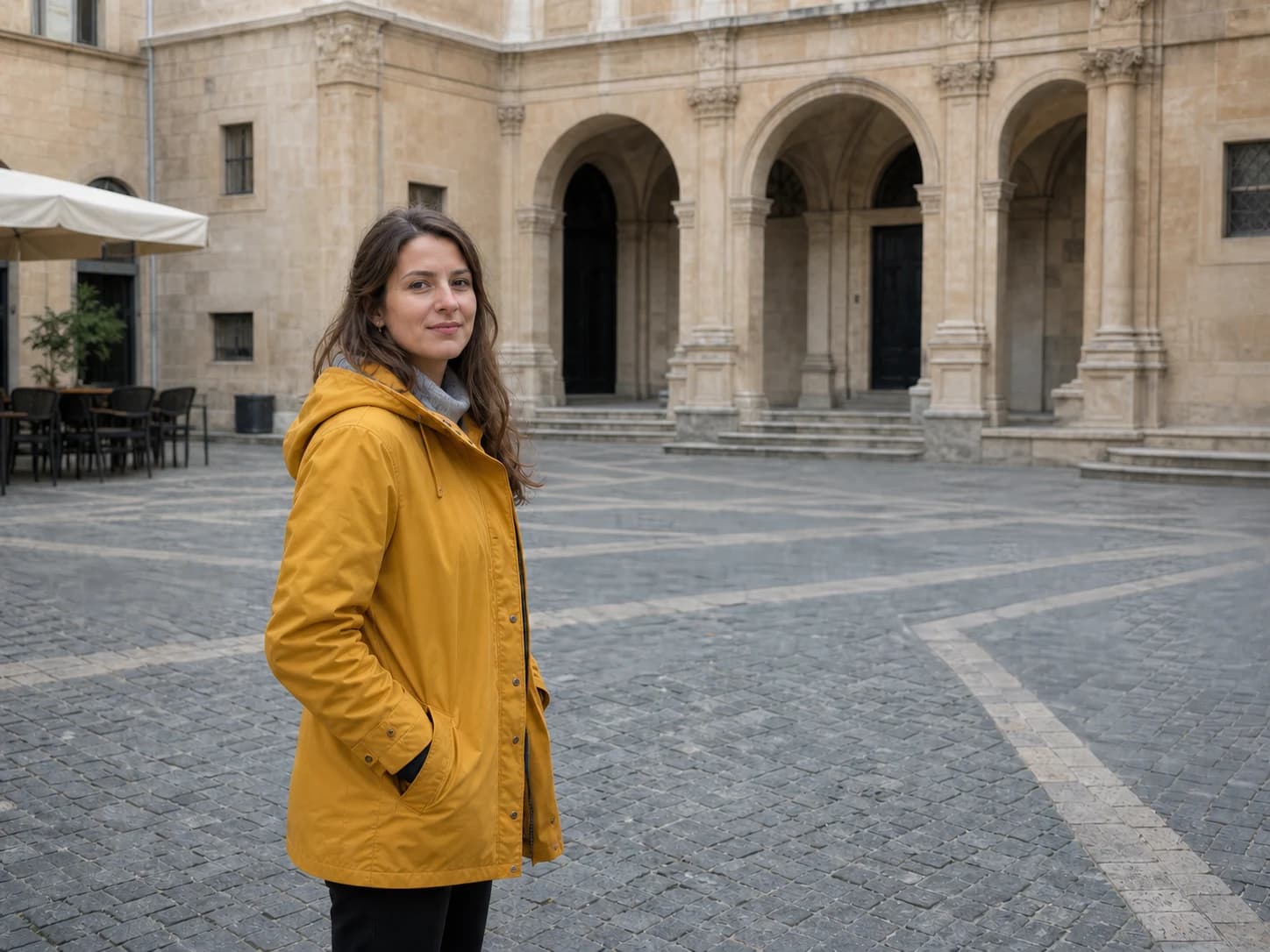
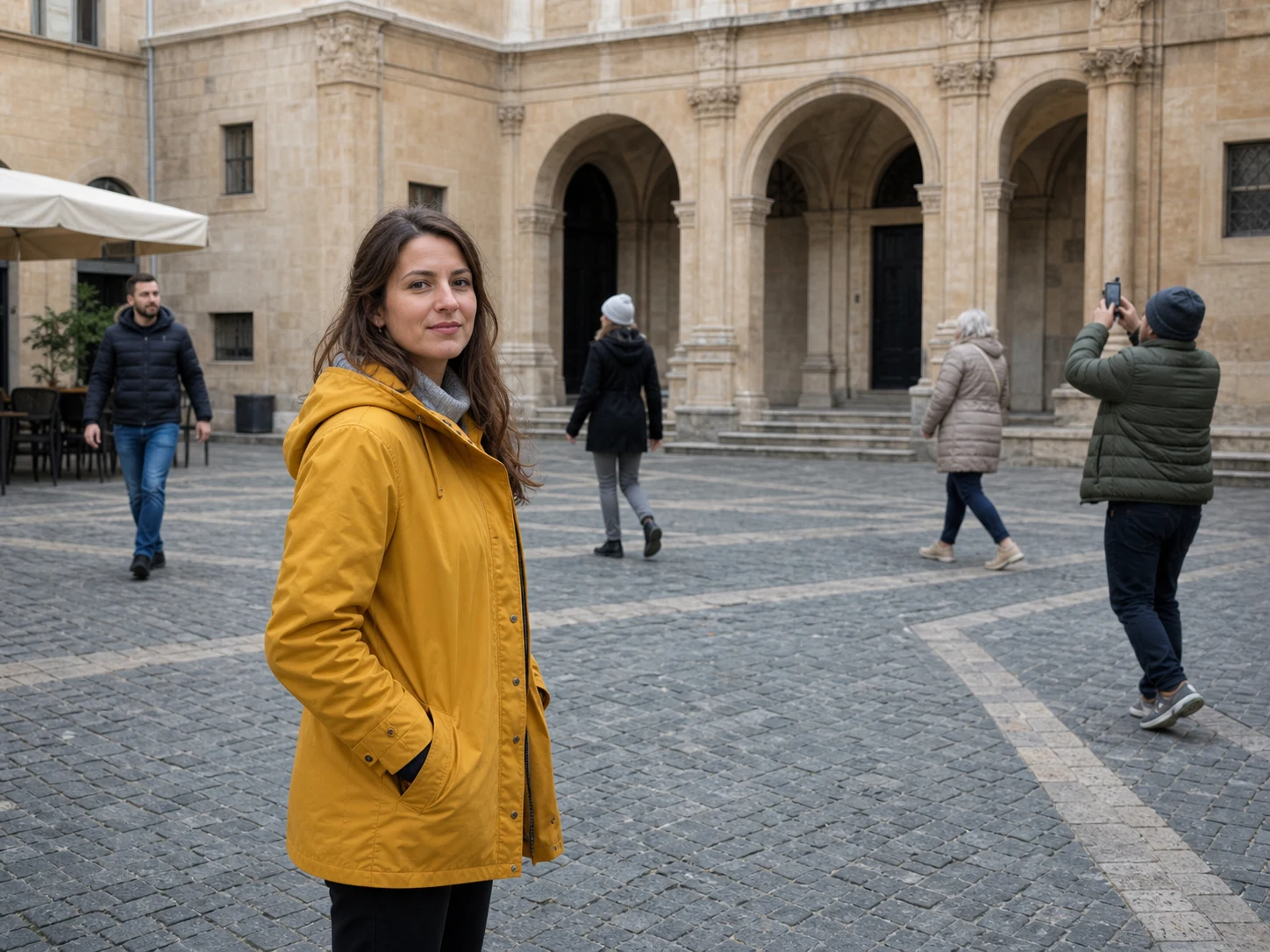
The edit below used a fictional travel photograph with four background pedestrians. The foreground traveler, coat, expression, crop, arches, steps, paving, and lighting were protected while the vacated areas were reconstructed.
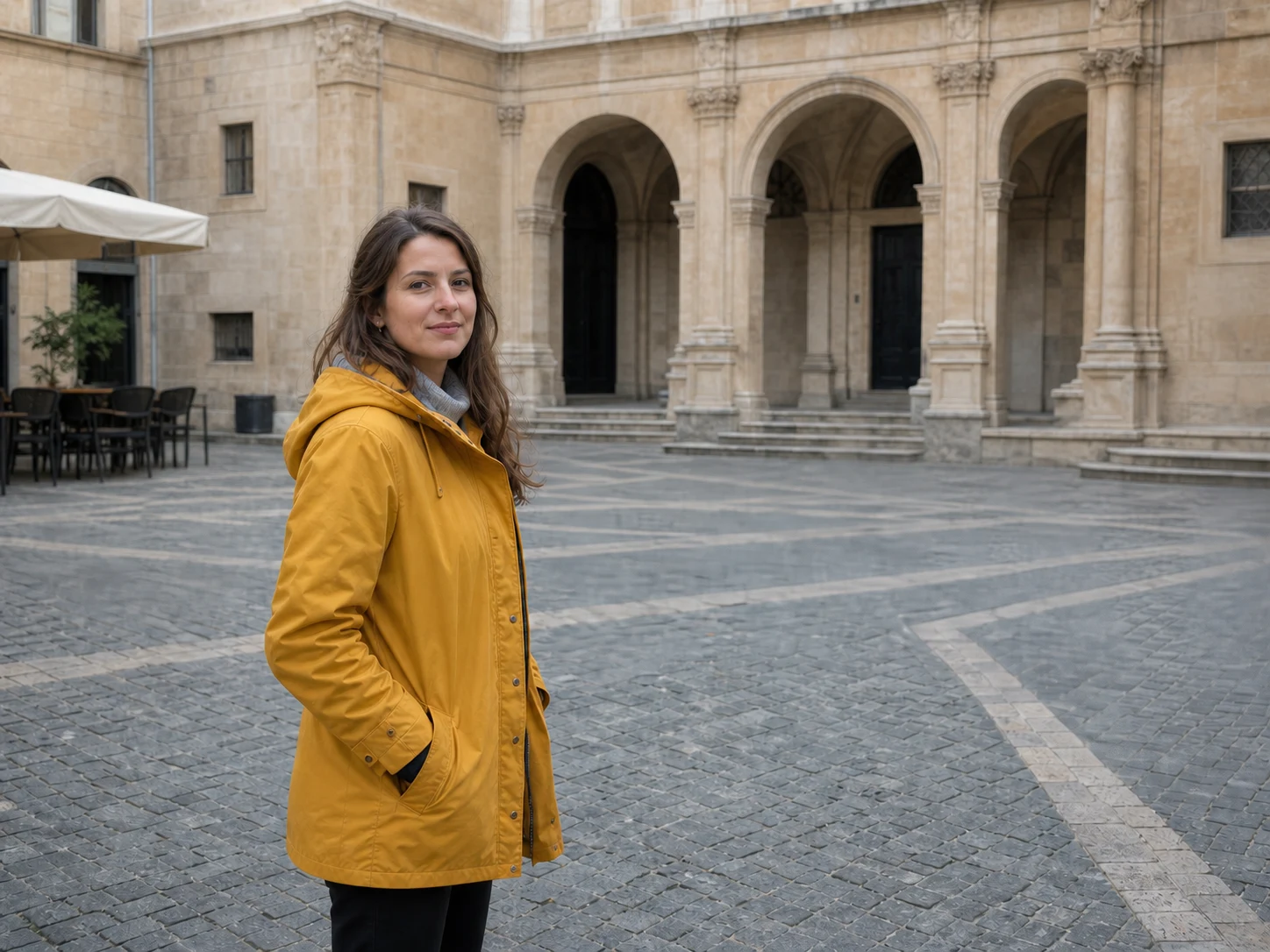
Do not judge only the thumbnail. Check the image at full size and look for:
- Changed facial features, fingers, clothing edges, or accessories on kept people.
- Feet, bags, phones, shadows, or reflections left behind.
- Repeated cobblestones, bricks, windows, leaves, or waves.
- Soft blur painted over an area that should contain texture.
- Bent railings, steps, doorways, horizons, or perspective lines.
- New objects invented to fill the space.
If one small area fails, make the next instruction narrower. Name the remaining person or artifact and repeat the preservation rules. Do not ask the model to remake the entire photograph.
Fix the common failure modes
The main subject changes
Make the keep-description more visual and explicit. Mention position, clothing color, and relationship to nearby people. If identity is important, keep the source image as the only reference and avoid style instructions in the same edit.
A companion is removed
Use Distant people only, or name the companion under People to keep. “Keep the two people nearest the camera” is often clearer than relying on foreground and background alone.
A ghost or shadow remains
Ask to remove the remaining fragment and its associated cast shadow while preserving unrelated shadows. Broad shadow removal can flatten the lighting of the entire scene.
The background looks smeared
Describe the missing structure: continue the cobblestone pattern, restore the railing with consistent perspective, or reconstruct the wall from adjacent stonework. Texture-specific instructions are more useful than “make it realistic.”
The crowd is too large
Remove people in smaller groups. Large edits force the model to invent too much scene information at once and make geometry errors more likely.
When not to use automatic removal
Use a professional retoucher, a mask-based editor, or a different photograph when:
- The removed person covers a face, product, sign, or unique object that must be accurate.
- The image is evidence, documentary material, or otherwise must not be altered.
- The final asset will be printed very large and every reconstructed detail matters.
- You need a transparent cutout rather than a repaired background.
- The people are the copyrighted or privacy-sensitive subject of the image and you do not have permission to edit or publish it.
No universal prompt works perfectly on every photograph. The goal is a repeatable workflow that limits what can change, makes failures easy to spot, and avoids spending credits on broad regenerations.
The recommendation
Start with Background people, describe the exact foreground subject or group under People to keep, and generate one High-quality result. Inspect identity, edges, textures, shadows, and perspective before downloading.
If the first edit is imperfect, narrow the correction. Preserve the photograph; repair only the problem.
Sources and image credits
Model capability guidance is based on OpenAI's official GPT Image 2 model documentation and image generation guide. The before-and-after example was created for the Nenis Remove Background People template using a fictional subject.