Seedream 4.5 Image-to-Image Guide: Edit Photos With References
Use Seedream 4.5 for controlled image-to-image editing: assign reference roles, preserve the right details, write clearer edit prompts, and inspect the result.
Seedream 4.5 image-to-image editing works best when the prompt separates two things: what must change and what must remain source-faithful.
Upload the source image, describe the intended edit, lock the details that matter, and generate one careful result before trying variations. This is more reliable than asking the model to “improve” or “transform” the entire picture without boundaries.
What image-to-image means in Seedream 4.5
Text-to-image begins with a written description. Image-to-image begins with one or more visual references and uses the prompt to decide how those images should influence the result.
With Seedream 4.5, a reference can act as:
- the source image whose composition should be edited;
- an identity reference for a person or character;
- a product reference whose shape, colours, and branding should remain recognisable;
- a style reference for lighting, palette, texture, or medium; or
- a component reference that contributes a specific object to a new composition.
ByteDance's official Seedream 4.5 publication emphasises reference consistency and says the model is designed to preserve facial features, lighting, colour tone, and other details during editing. That makes the model a strong choice when continuity matters as much as the requested change.
For the broader model overview, official examples, and Seedream 4 comparison, see the complete Seedream 4.5 guide.

Start with the right source image
An image-to-image model can follow only what it can see clearly. Use the highest-quality original available and avoid a screenshot when the source file still exists.
A strong input has:
- a clearly visible subject;
- enough resolution to inspect important details;
- lighting and perspective that fit the intended edit;
- no accidental crop through hands, products, furniture, or clothing; and
- legible text when exact wording needs to survive.
When the source is heavily blurred, compressed, or partly hidden, the model must infer more. A plausible result can still be visually good, but it becomes less trustworthy as a preservation edit.
Use a four-part image editing prompt
The most reusable Seedream 4.5 prompt has four parts.
Target: identify the source image and the exact subject or area to edit.

Change: describe the requested new content, material, setting, text, or lighting.

Keep: list the source details that must remain unchanged.

Avoid: name the likely failure modes for this specific image.
Here is a concrete example:
Edit the uploaded product photograph.

Replace the plain tabletop with pale limestone and add a soft warm studio background. Keep the product's exact shape, proportions, label design, logo, cap, colours, and camera angle unchanged. Preserve the existing contact shadow direction and realistic material texture.

Do not redesign the packaging, rewrite any text, add props in front of the product, crop the product, or change the lens perspective.
The prompt is precise without trying to control every pixel. It defines the model's permitted edit area and protects the commercial details that would make an otherwise attractive result unusable.
Practical Seedream 4.5 edit prompts
Use these as structures, then replace the subjects and preservation details with what is actually visible in your source.
Change a portrait background
Edit the uploaded portrait. Replace only the background with a quiet modern office in soft daylight.

Keep the person's face, identity, expression, hair, skin texture, body, pose, hands, clothing, jewellery, crop, and camera perspective unchanged.

Match the new background lighting to the existing subject. Avoid beauty retouching, face reshaping, extra accessories, blurred edges, or changes to the subject.
Restyle an interior
Edit the uploaded living room into a warm contemporary interior with oak, cream textiles, and restrained black accents.

Keep the exact room geometry, window positions, ceiling height, floor boundaries, camera position, and perspective. Replace only the furniture, lighting fixtures, and movable decor.

Avoid moving walls, adding doors, changing the window view, bending vertical lines, or changing the crop.
Change one material
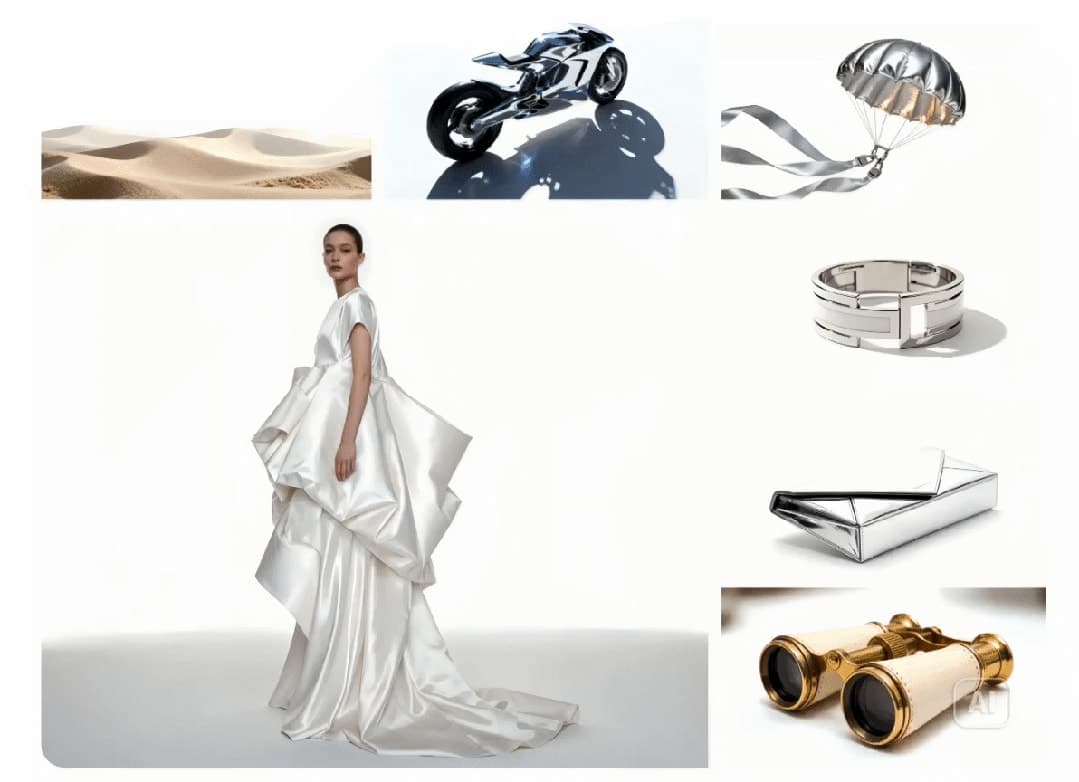
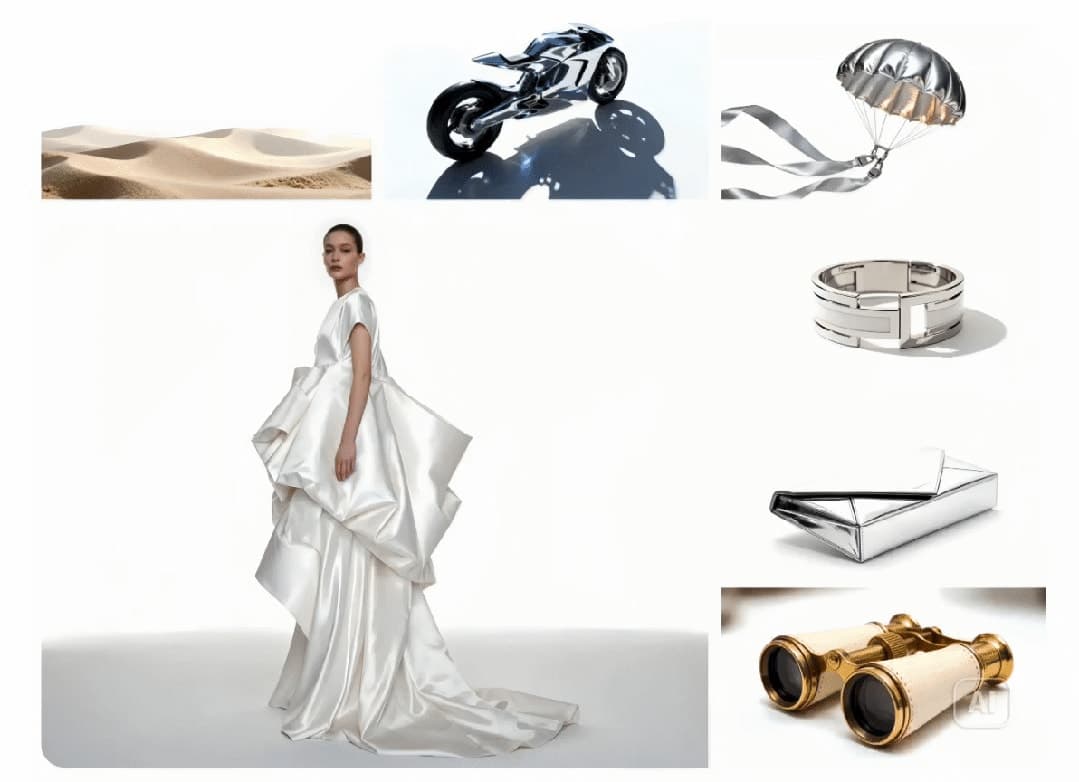
Change the silver metal dress material to clear flowing glass while preserving the model's exact pose and the garment's shape.

Keep the face, body, hands, hair, camera angle, background, and composition unchanged. Update highlights and shadows only as required by transparent refractive glass.

Avoid changing the silhouette, skin, expression, or surrounding scene.
Replace text in a design
Replace only the headline “SPRING EDIT” with “AUTUMN EDIT” in the same position, size, alignment, and visual hierarchy.

Keep every image, logo, price, colour, margin, and other line of text unchanged. Use a clean bold sans-serif style that matches the existing design.

Do not rewrite any other wording or rearrange the layout.
Text replacement is still a generative edit. Check spelling, punctuation, logo shapes, prices, and small print at full size before publishing.
Use multiple references without confusing their roles
Nenis currently accepts up to 14 reference images with Seedream 4.5. That does not mean every edit needs fourteen. Add only the references that have a clear job.
Number them in the same order they were uploaded:
Use image 1 as the source composition and camera angle.
Use image 2 as the exact product reference; preserve its shape, label, logo, and colours.
Use image 3 only for the warm amber lighting and shadow softness.

Place the product from image 2 into the scene from image 1. Keep the source perspective from image 1 and match the lighting qualities from image 3. Do not copy objects or background geometry from image 3.
This role-based structure prevents style, identity, and composition references from competing with one another.
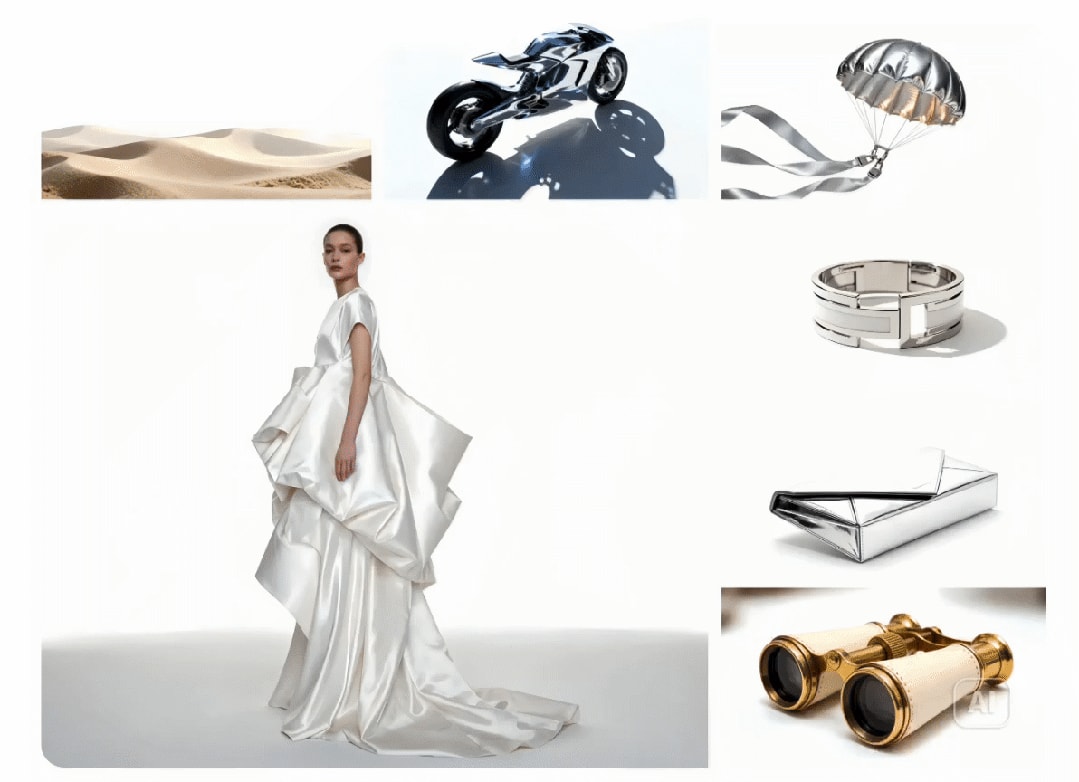
The official example demonstrates the intended capability; it is not an independent Nenis benchmark. Real results still depend on source quality, prompt clarity, output settings, and generation variation.
Choose useful Nenis settings
Seedream 4.5 in Nenis currently supports:
| Setting | Current option |
|---|---|
| Input references | Up to 14 |
| Output quality | High or Ultra |
| Aspect ratios | 1:1, 4:3, 3:4, 16:9, 9:16, 3:2, 2:3, and 21:9 |
| Results per run | 1 to 10 |
| Current price | 5 credits per result |
Start with High and one result while refining the instruction. Use Ultra when the direction is settled and the final asset benefits from the larger output. Asking for many results too early multiplies the cost without fixing an unclear prompt.
Keep the source aspect ratio when the edit should preserve the exact composition. Choose a new ratio only when extending or reframing the scene is part of the brief.
Diagnose common image-to-image failures
The subject changes too much
Move the identity or product details into a dedicated Keep sentence. Name face, expression, pose, shape, label, colours, and camera angle as separate protected attributes. Remove broad style language that applies to the whole image.
The model ignores one reference
Assign every input a numbered role. If a reference is not necessary, remove it. Fewer references with clear responsibilities usually give the prompt less room for ambiguity.
The edit affects areas that should stay fixed
Describe the permitted area more narrowly: “replace only the wall behind the sofa” is safer than “modernise the room.” Repeat the crop, geometry, and perspective locks.
Text looks convincing but is wrong
Quote the exact replacement text and protect every other line. Generate one result, then zoom in. For legally or commercially important typography, use the AI image as a draft and set the final text in a layout tool.
The result looks good but not source-faithful
Decide whether the task is an edit or a re-creation. If exact identity, packaging, architecture, or evidence must remain pixel-faithful, a masked or traditional editor may be the better tool.
When Seedream 4.5 is the wrong choice
Use a dedicated background remover when you need a transparent cut-out rather than a rebuilt scene. Use the Standard Upscaler when the only problem is insufficient resolution. Use a mask-based editor for pixel-specific corrections that cannot tolerate changes outside a selected area.
Seedream 4.5 is strongest when the job needs controlled generative change: new materials, settings, lighting, layout, text, or multi-reference composition while retaining recognisable source details.
When the brief has several reference roles, spatial relationships, or information hierarchy for the model to reason through, compare the workflow with the Seedream 5.0 Lite prompt guide.
The recommendation
Begin with one clear source and a four-part prompt: target, change, keep, avoid. Generate one High-quality result, compare it with the source at full size, and add references only when each has a defined role.
The key is not writing the longest prompt. It is drawing a clear boundary between the image Seedream may reinterpret and the details it must respect.
Sources and image credits
- ByteDance Seed: Seedream 4.5 official model publication and showcase
- BytePlus: Seedream 4.5 announcement
- BytePlus ModelArk: Seedream 4.5 release documentation
- BytePlus ModelArk pricing
The Seedream showcase images are credited to ByteDance Seed. They are included to explain the model maker's published examples and are not presented as independent Nenis test results. Nenis capabilities and credit pricing were verified against the production catalogue on September 2, 2026 and may change.