Seedream 5.0 Lite Prompt Guide: 10 Reusable Templates
Write better Seedream 5.0 Lite prompts with ten reusable templates for product photos, image editing, multiple references, portraits, posters, and infographics.
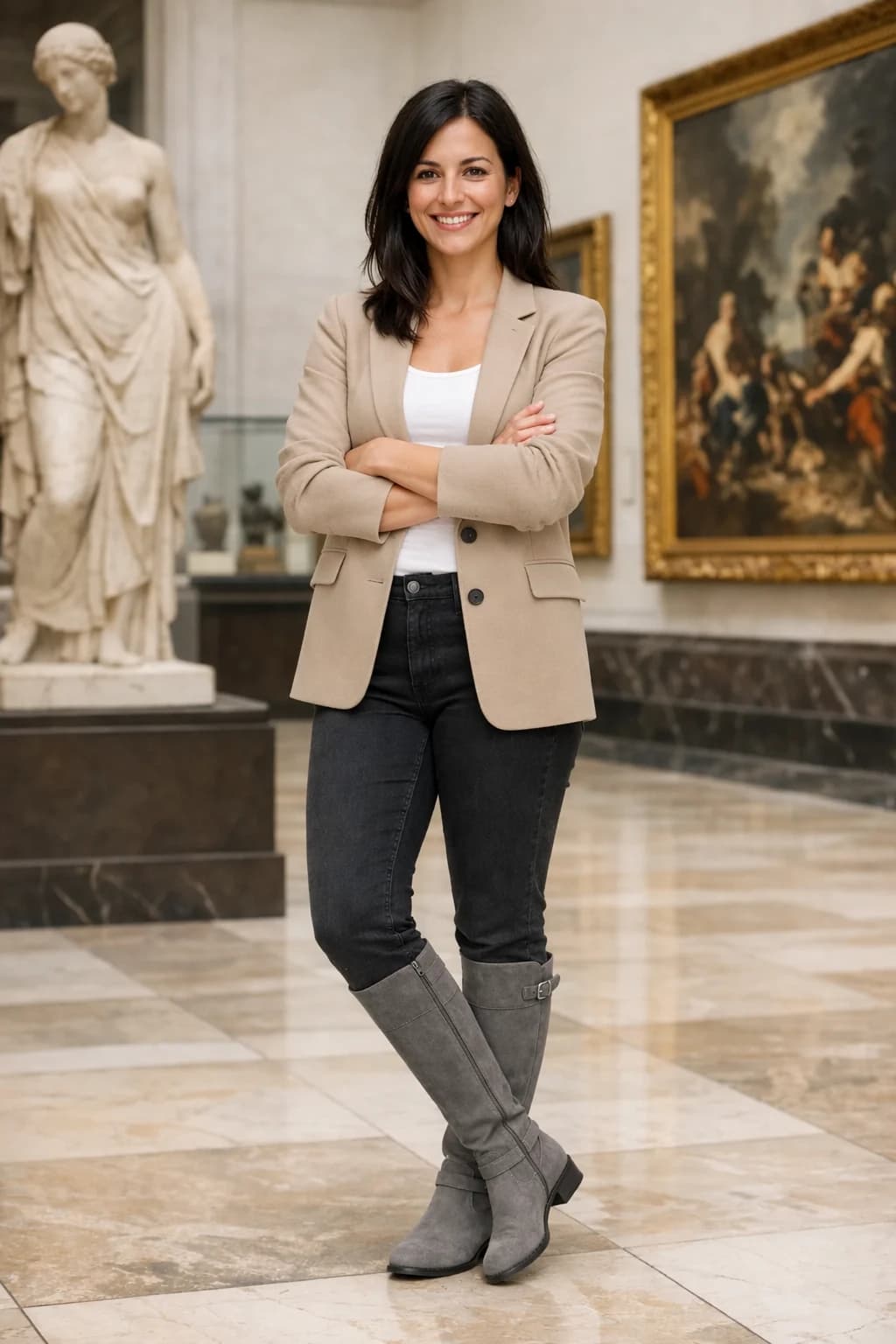
A useful Seedream 5.0 Lite prompt reads more like a compact creative brief than a list of visual adjectives. State the asset, assign every reference image a role, describe the required structure, and separate what may change from what must stay fixed.
The ten templates below cover the jobs where that structure matters most. Replace the bracketed details with information from your project, remove any line that does not apply, and generate one result before requesting a larger batch.
If you first need the model's features, settings, and limitations, read the Seedream 5.0 Lite model guide. This page focuses specifically on prompting it well.
The Seedream 5.0 Lite prompt formula
Use this order for most prompts:
Create: [asset and intended use].
Subject: [people, products, objects, or scene].
Reference roles: [what each uploaded image controls].
Structure: [layout, count, position, and hierarchy].
Style: [lighting, palette, materials, lens, or medium].
Exact text: "[approved wording only]".
Preserve: [identity, geometry, pose, branding, or composition].
Avoid: [the most likely failure modes].
Output: [aspect ratio and quality].
Not every prompt needs every line. The point is to make relationships explicit. Seedream 5.0 Lite is designed to interpret complex instructions and visual references, but it should not have to guess which uploaded image controls the product and which controls only the lighting.
1. Create a commercial product photo
Use this when you have a product reference and need a new advertising scene without redesigning the item.
Create a premium 4:5 ecommerce campaign photograph for [audience or channel].

Use image 1 as the exact product reference. Place it upright on [surface] in [environment]. Use [soft/hard] light from [direction], with [shadow quality] and a [color] background.

Keep the product's shape, proportions, cap, label area, logo placement, colors, and material finish unchanged. Keep every visible line of packaging text exactly as supplied.

Avoid extra products, invented text, warped packaging, hidden branding, floating objects, and props overlapping the product.

Output: 4:5 composition, Ultra quality.
If packaging accuracy is critical, inspect the logo, small print, reflections, and silhouette at full size. A visually convincing result is not proof that every commercial detail survived.
2. Change only the background
This pattern draws a firm boundary around the permitted edit.
Edit the uploaded image. Replace only the background behind [subject] with [new setting].

Keep the subject's identity, face, hair, expression, body, pose, hands, clothing, accessories, crop, camera angle, and edge detail unchanged. Match the new environment's light direction and depth of field to the existing subject.

Do not retouch the face, reshape the body, replace clothing, add accessories, change the subject's position, or crop the image.
“Replace only” and the dedicated Keep sentence matter more than a long description of the new room or landscape.
3. Make a precise object edit
Name the target, its location, and the protected surroundings.
Edit the [object] located [clear position in the image]. Change its [color/material/form] from [current state] to [new state].

Keep the object's size, position, perspective, and contact shadow. Preserve every other object, the people, background, lighting, crop, and camera perspective exactly as they are.

Update reflections and shadows only where required by the new [color/material]. Do not add, remove, or move anything else.
If a correction cannot tolerate any change outside a pixel-level selection, use a masked editor instead. Seedream is performing a generative edit, not modifying a locked group of pixels.
4. Combine several reference images
Seedream 5.0 Lite accepts up to 14 references in Nenis. BytePlus documents a combined limit of 15 input-reference and generated images per request, so requesting more results reduces the number of references available in that run. More inputs are useful only when each has a clear responsibility.
Create a [ratio] [asset type] for [use case].

Use image 1 for the exact subject and identity.
Use image 2 only for the pose and camera angle.
Use image 3 only for the clothing design.
Use image 4 only for the background palette and lighting mood.

Combine these roles into one coherent scene. Keep the identity from image 1 recognizable and preserve the garment details from image 3. Match perspective, scale, lighting direction, and contact shadows across the final composition.

Do not copy the person from image 2, the setting from image 3, or any objects or text from image 4.
The final negative line stops secondary references from leaking unwanted content into the composition.
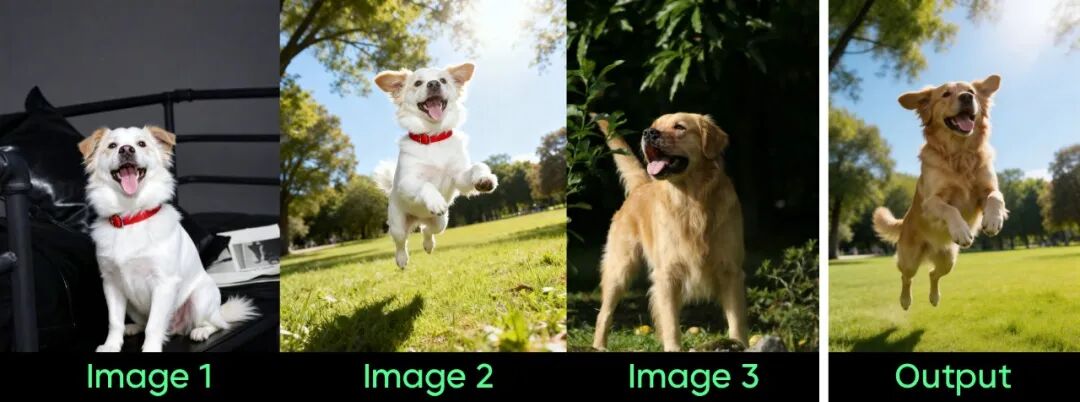
ByteDance uses this official example to demonstrate relationship-based editing: the model observes a transformation across references and applies it to another subject. It is a vendor showcase, not an independent Nenis benchmark.
5. Transfer style without copying content
Describe what “style” means for the job rather than asking the model to imitate an entire picture indiscriminately.
Restyle image 1 using image 2 only as a visual-style reference.

Transfer image 2's color palette, contrast, light softness, texture, and [illustration/photographic] treatment. Keep image 1's subject, identity, pose, proportions, objects, composition, perspective, and crop unchanged.

Do not copy people, objects, text, logos, scenery, or layout from image 2. Do not change the content of image 1.
This is especially helpful when the style reference contains recognizable objects that should not appear in the result.
6. Build a structured multi-subject scene
Numbered instructions work well when object count and position are part of the brief.
Create a front-facing 3x3 display grid with nine equal cells.

Reading left to right, top to bottom, place exactly one item in each cell:
1. [item, color, and material]
2. [item, color, and material]
3. [item, color, and material]
4. [item, color, and material]
5. [item, color, and material]
6. [item, color, and material]
7. [item, color, and material]
8. [item, color, and material]
9. [item, color, and material]

Keep every cell the same size, align each object centrally, and use consistent studio lighting. Do not repeat, merge, omit, or move an item to another cell.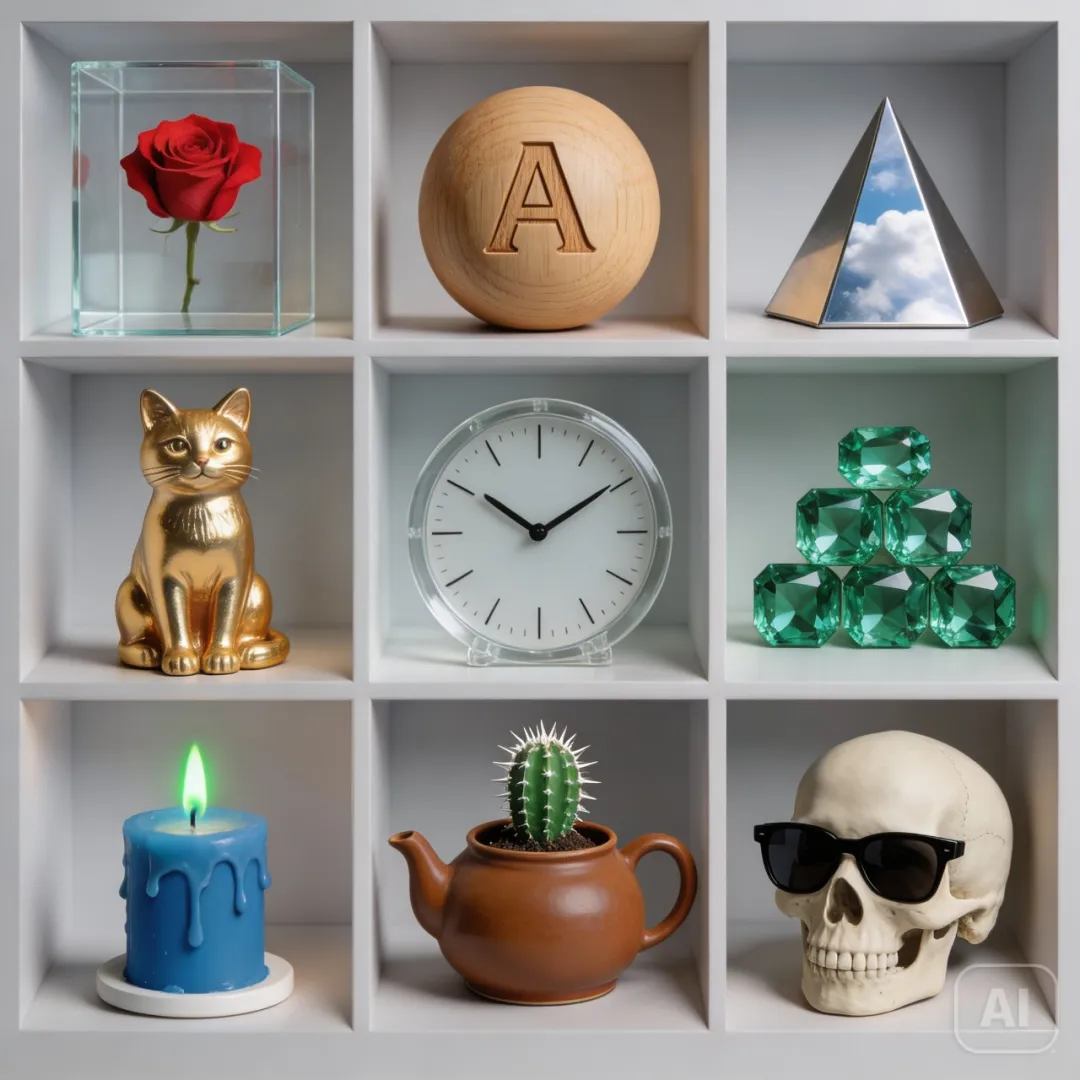
The official example shows why Seedream 5.0 Lite is useful for prompts that contain multiple relationships. Still count the objects and inspect every requested attribute before using the result.
7. Design an infographic from approved facts
Give the model the exact information to visualize. Do not ask it to invent research, measurements, citations, or current facts.
Create a clean 16:9 educational infographic explaining [topic] for [audience].

Use only these approved facts:
- [fact 1]
- [fact 2]
- [fact 3]
- [fact 4]

Layout: [main visual] on the left and [three/four] numbered stages on the right, connected by clear arrows. Use only these labels: "[label 1]", "[label 2]", "[label 3]".

Use [visual style], strong spacing, and a hierarchy readable on a presentation slide. Do not add statistics, labels, claims, sources, or decorative text.
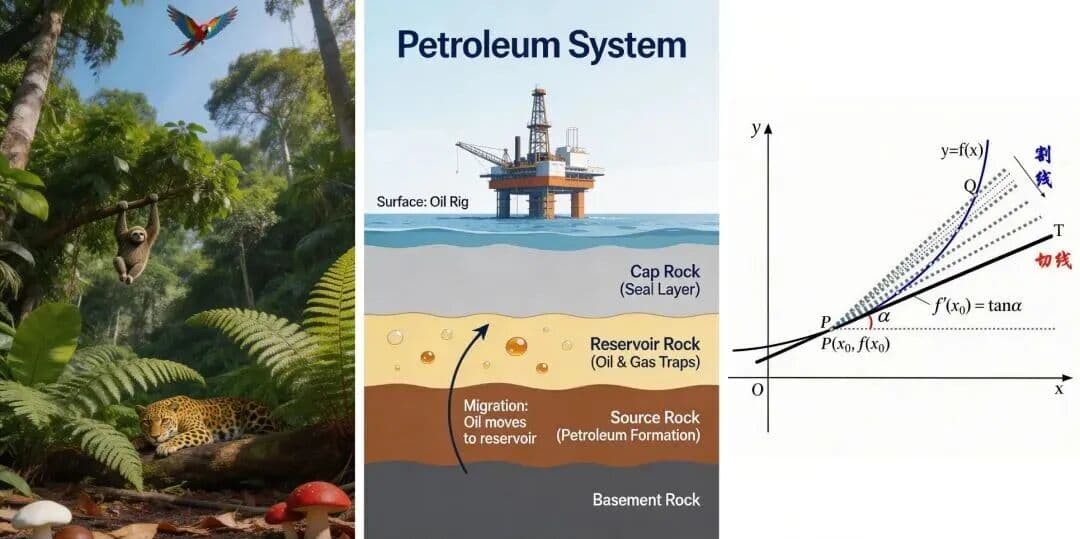
ByteDance highlights information visualization as a Seedream 5.0 Lite strength. Treat the generated image as a designed draft: verify every word, number, arrow, and relationship before publication.
8. Create a poster with exact text
Keep the required copy short and quote it exactly.
Create a vertical 3:4 event poster for [event type].

Use this exact text and no other words:
Headline: "[HEADLINE]"
Date: "[DATE]"
Location: "[LOCATION]"

Hierarchy: headline in the upper third, main visual in the center, date and location aligned at the bottom. Use a [typographic style] with [palette and texture]. Leave comfortable margins around every line.

Do not invent sponsors, logos, prices, URLs, letters, symbols, or fine print. Preserve the spelling and punctuation exactly.
Always proofread text at full resolution. For a public campaign, it is safer to treat the generated poster as a visual concept and set final type in a layout tool.
9. Produce a consistent portrait direction
Use a portrait reference to protect the person while changing the photographic treatment.
Create a [ratio] editorial portrait using image 1 as the identity reference.

Keep the person's recognizable facial features, skin tone, hairline, age, and natural proportions. Use [framing], [lens character], [lighting setup], [background], and [wardrobe direction]. The expression should feel [mood].

Preserve realistic skin texture and natural facial asymmetry. Avoid beauty-filter skin, face reshaping, altered eye color, extra jewellery, distorted hands, and background objects crossing the silhouette.
Identity preservation is probabilistic. Review the result against the reference instead of judging only whether it looks like a plausible person.
10. Turn a rough idea into a reasoned visual brief
Seedream 5.0 Lite is most useful when you express the communication goal, not only the desired appearance.
Create a [asset type] for [audience and channel].

Communication goal: the viewer should immediately understand [single message].
Visual metaphor: use [object or relationship] to represent [idea].
Structure: one clear focal point, [supporting elements], and space for [approved text or interface element].
Tone: [three precise qualities].
Palette and light: [direction].

Avoid generic AI imagery, unnecessary interface panels, visual clutter, unrelated symbols, and text that was not supplied. The concept must remain understandable at thumbnail size.
This gives the model room to solve a design problem while keeping the result accountable to a specific message.
Choose the right Nenis settings
Seedream 5.0 Lite currently supports Standard, High, and Ultra output in Nenis, mapped to 2K, 3K, and 4K. It offers eight aspect ratios, controls for up to 14 reference images, and one to ten results per job, subject to BytePlus's combined 15-image input-and-output limit. Each result costs five credits regardless of the selected quality.
Use Standard while testing a concept, High for a stronger working asset, and Ultra after the direction is stable or when the final use benefits from more resolution. Quality cannot rescue an ambiguous prompt, so fix subject roles and preservation rules before increasing resolution or output count.
Nenis does not currently expose the optional online-search control described in ByteDance's Seedream release. Supply current facts yourself and keep fact-checking outside the image-generation step.
Seedream 5.0 Lite or Seedream 4.5?
Choose Seedream 5.0 Lite when the prompt contains several relationships, reference roles, spatial rules, information hierarchy, or a visual problem the model must interpret. Choose Seedream 4.5 when you already have a dependable reference-editing workflow and mainly need controlled visual continuity.
Both cost five credits per result in Nenis. For a direct workflow comparison, read the Seedream 4.5 image-to-image guide and the complete Seedream model comparison.
The recommendation
Start with the shortest template that fully defines the task. Assign reference roles, list protected details, name likely failures, and test one Standard result. Add detail only when the first output reveals a real ambiguity.
Seedream 5.0 Lite does not need the longest prompt. It needs a brief whose subjects, relationships, and boundaries are easy to understand.
Sources and image credits
- ByteDance Seed: Seedream 5.0 Lite official product page
- ByteDance Seed: Seedream 5.0 Lite launch article
- BytePlus ModelArk: image generation tutorial and Seedream capability table
- BytePlus ModelArk: current model pricing
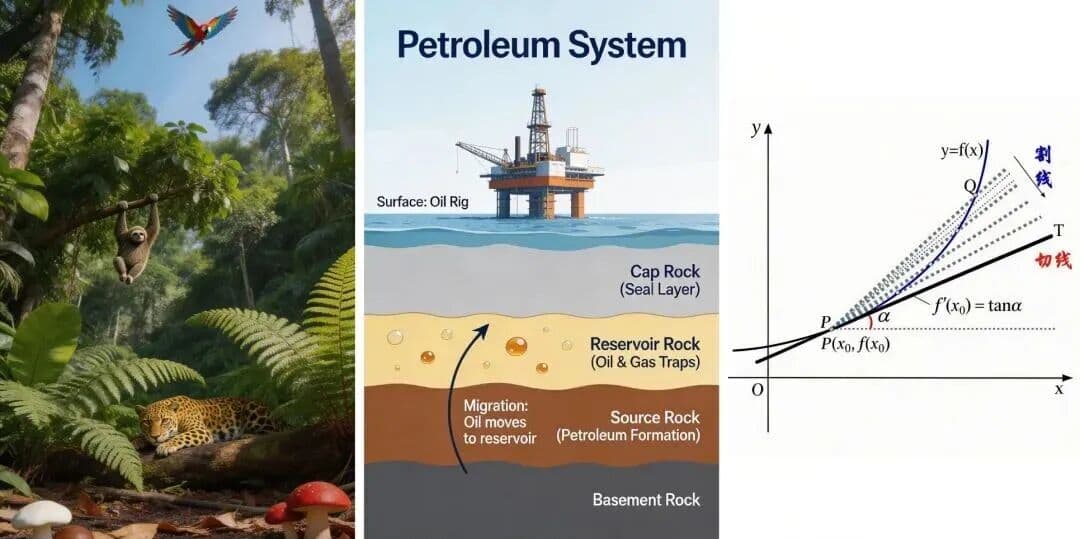
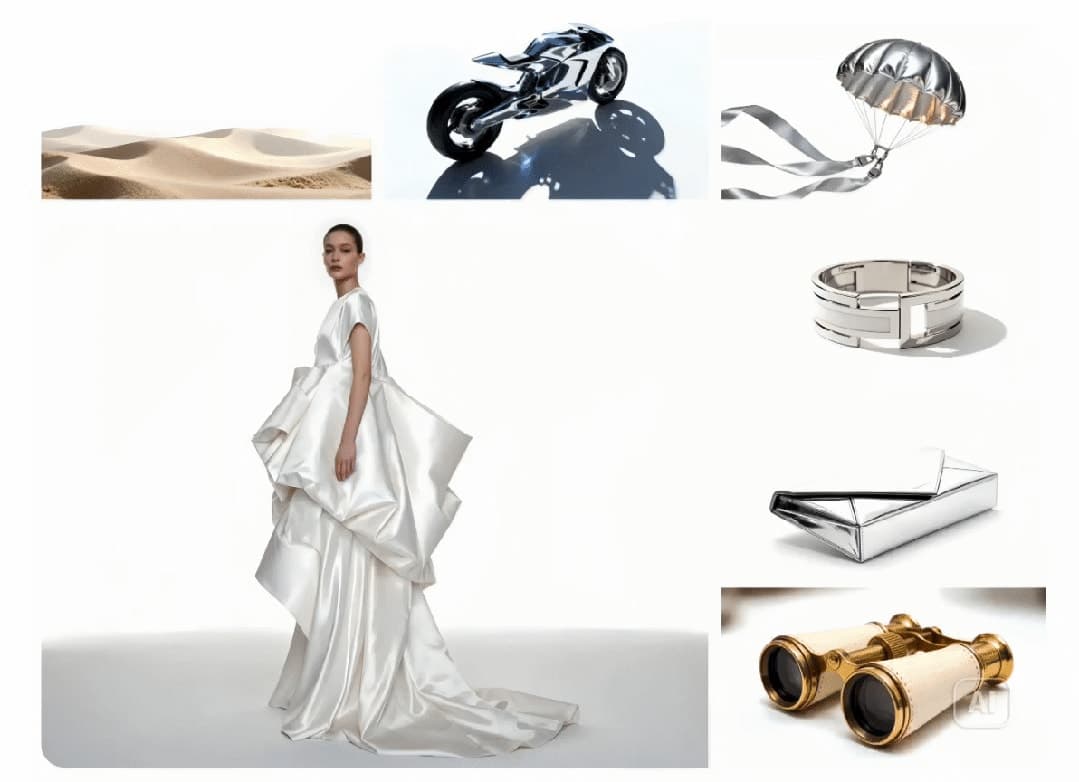
The three Seedream examples are official ByteDance Seed showcase images included to explain vendor-published capabilities; they are not presented as independent Nenis test results. Nenis controls and credit pricing were verified against the production catalogue on September 3, 2026 and may change.