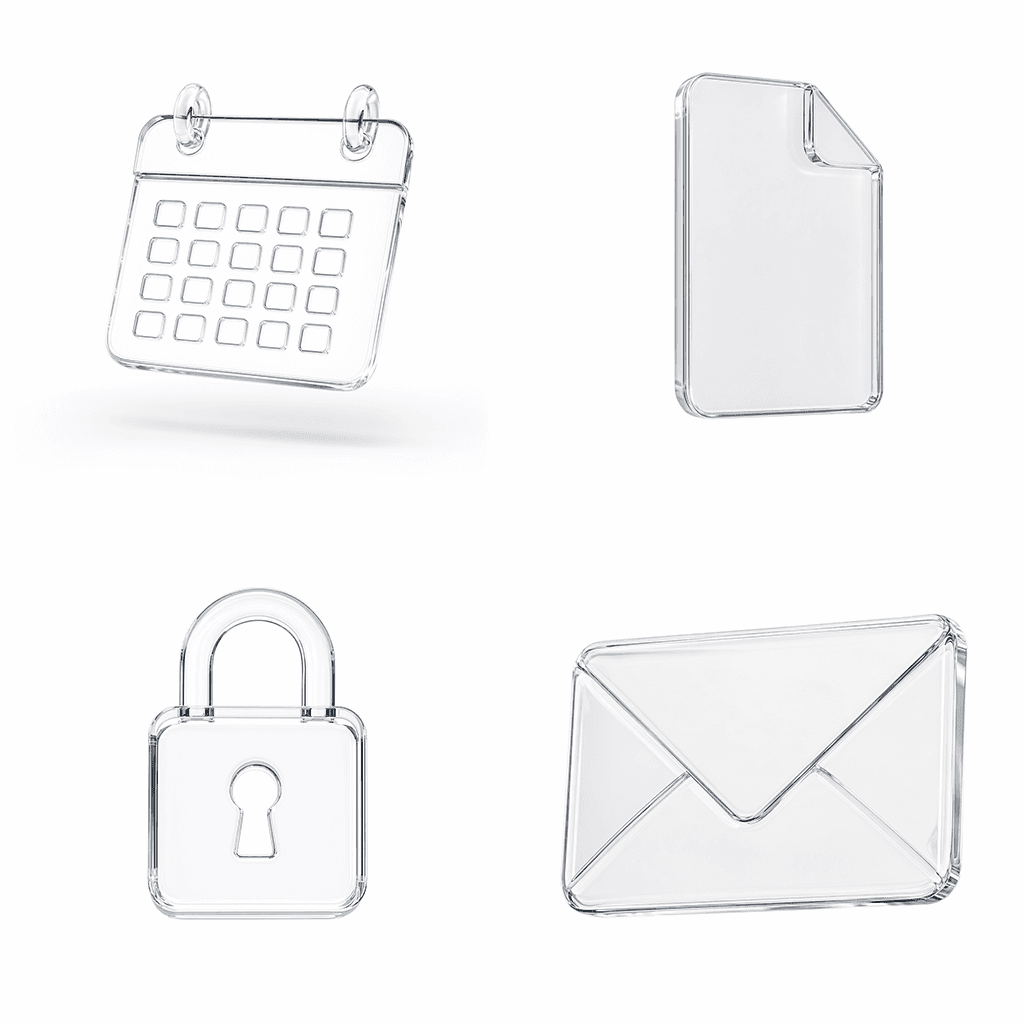
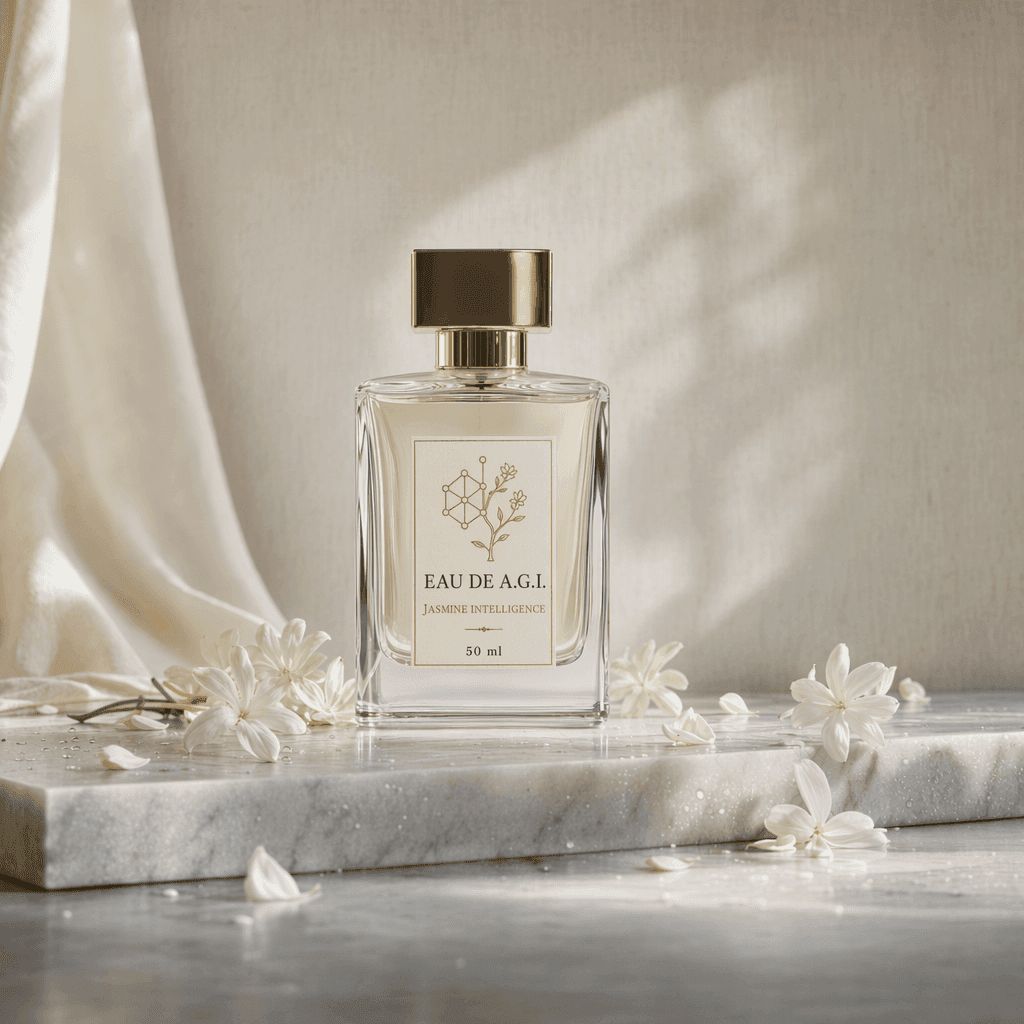
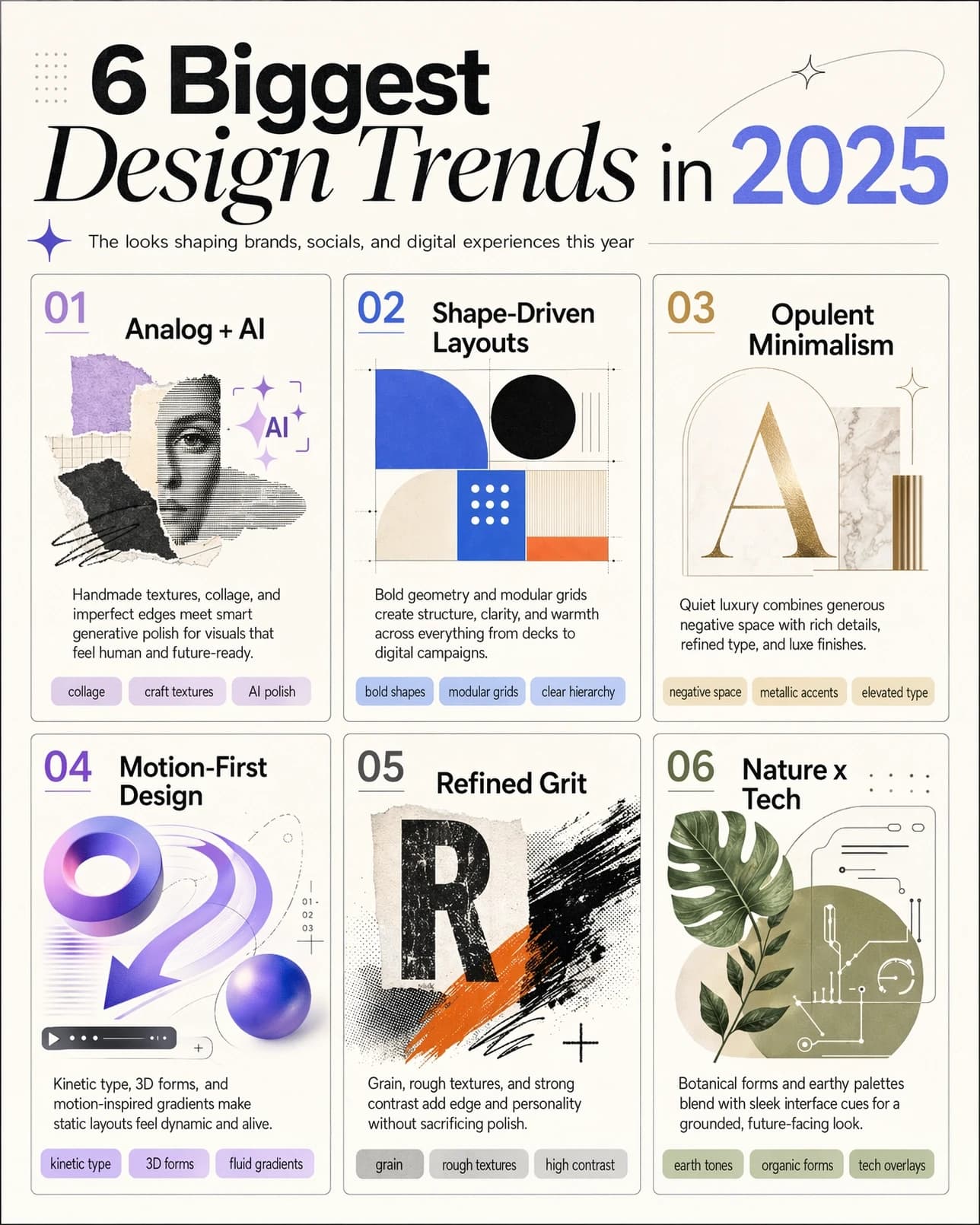
GPT Image Models in Nenis: Mini, 1.5, and GPT Image 2 Compared
A practical guide to the OpenAI GPT Image models in Nenis: when to use GPT Image 1 Mini, GPT Image 1.5, and GPT Image 2 for generation, editing, text, references, and final assets.
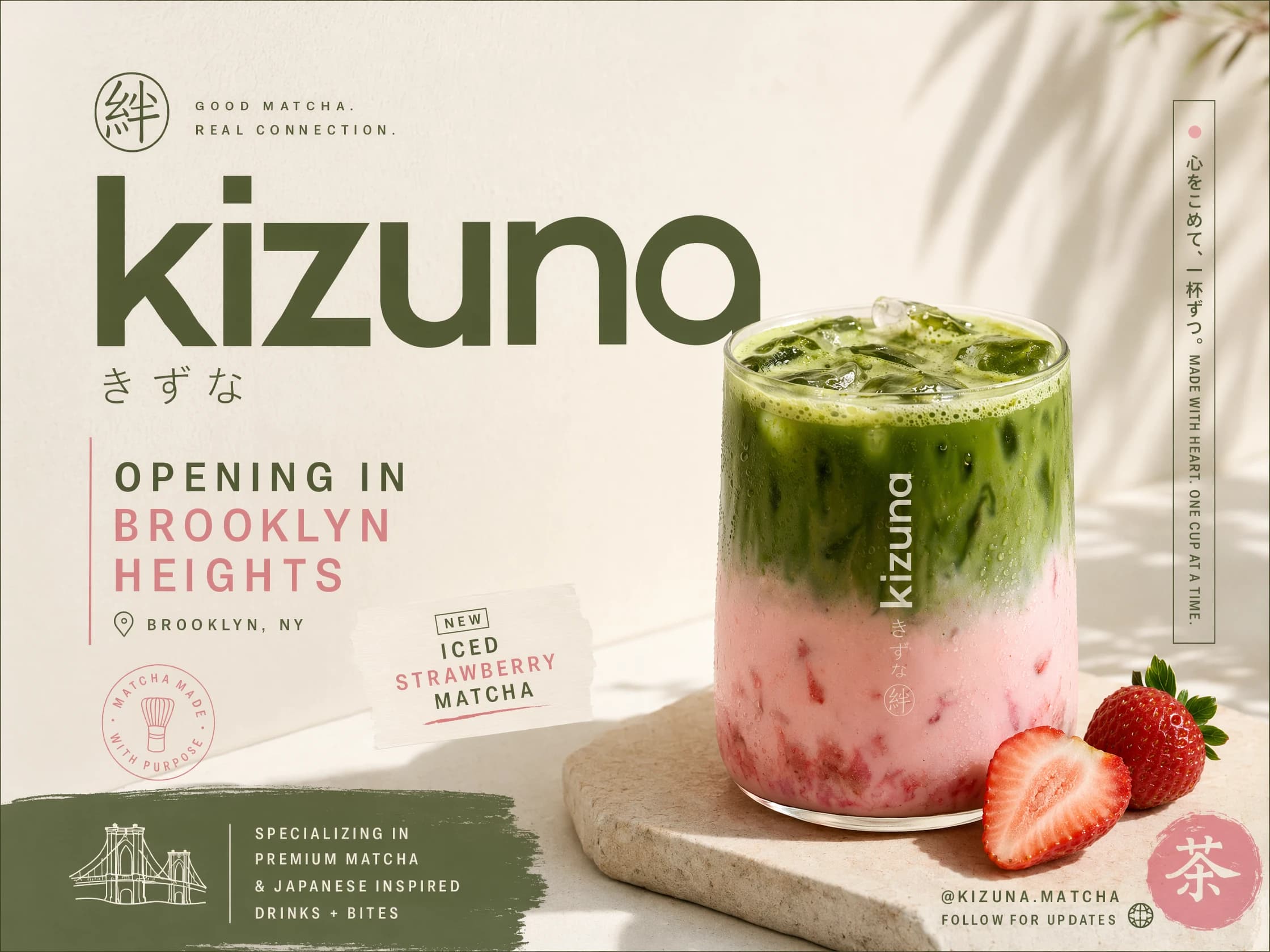
OpenAI's GPT Image models give Nenis users a clean three-step ladder: cheap exploration, stronger creative control, and high-fidelity final output.
That matters because image work is not one kind of task.
Sometimes you want ten quick visual directions. Sometimes you need a clean product mockup. Sometimes the image has to include readable text, preserve reference details, and look like something you could actually publish.
This guide is the practical OpenAI model picker for Nenis.
The Quick Answer
Use the model by stage, not by name.
| Nenis model | Provider model | Nenis credits | Best use |
|---|---|---|---|
| GPT Image 1 Mini | gpt-image-1-mini |
6 per output | Fast, lower-cost drafts and simple visuals |
| GPT Image 1.5 | gpt-image-1.5 |
25 per output | Better quality, stronger references, polished everyday work |
| GPT Image 2 | gpt-image-2 |
40 per output | Final assets, complex prompts, high-fidelity edits, text-heavy visuals |
The simplest workflow: start with Mini, improve with 1.5, finish with GPT Image 2 when the asset has a real job.
What Makes The GPT Image Family Useful
OpenAI describes GPT Image models as natively multimodal image models: they accept text and image inputs, then produce image outputs. The current OpenAI image generation guide also emphasizes generation, editing, reference-image workflows, output customization, transparent backgrounds where supported, and high-fidelity image inputs.
For creators, the useful translation is this:
- You can create from a prompt.
- You can bring reference images.
- You can edit existing images.
- You can ask for text inside the image.
- You can shape output by size, quality, format, and style.
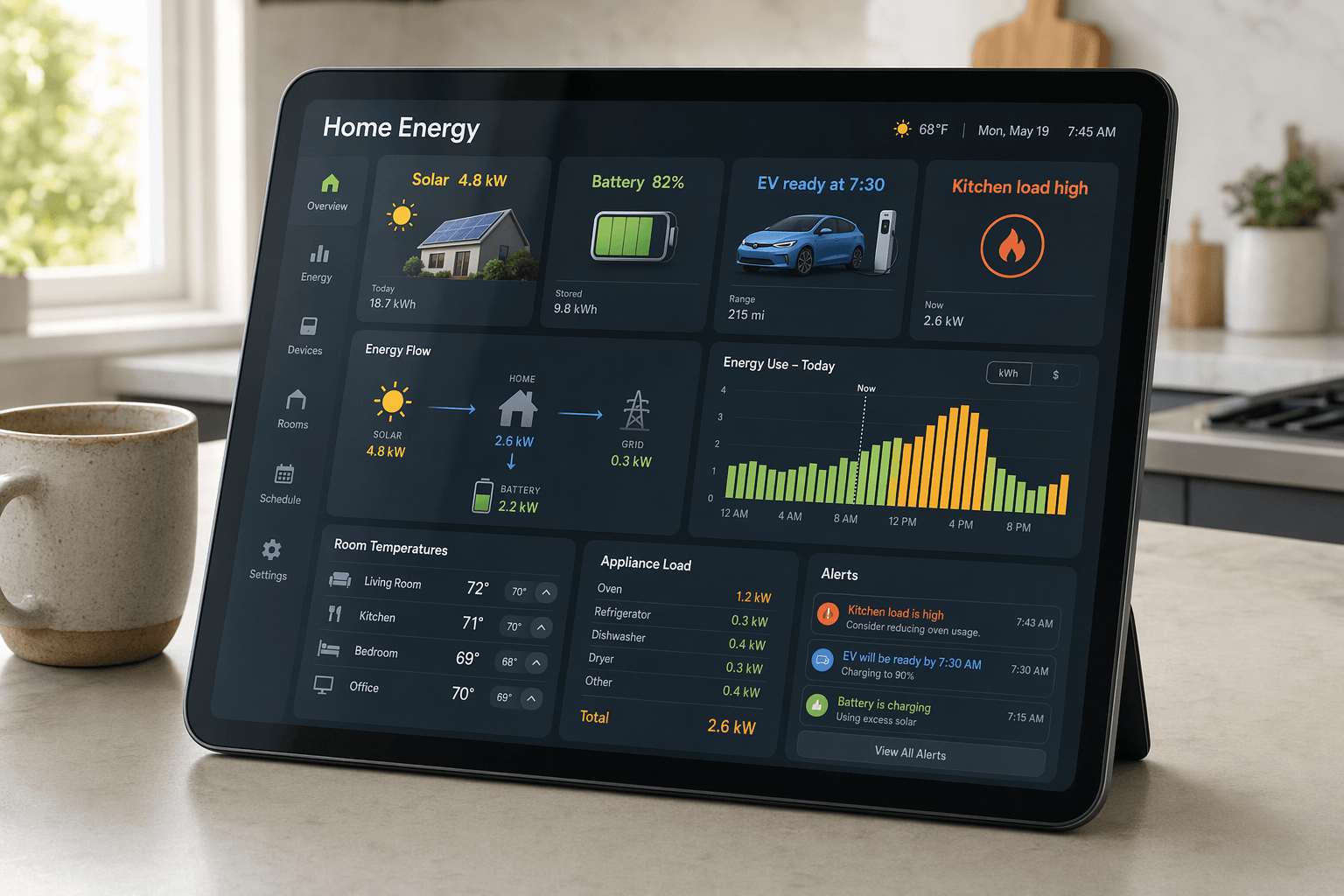
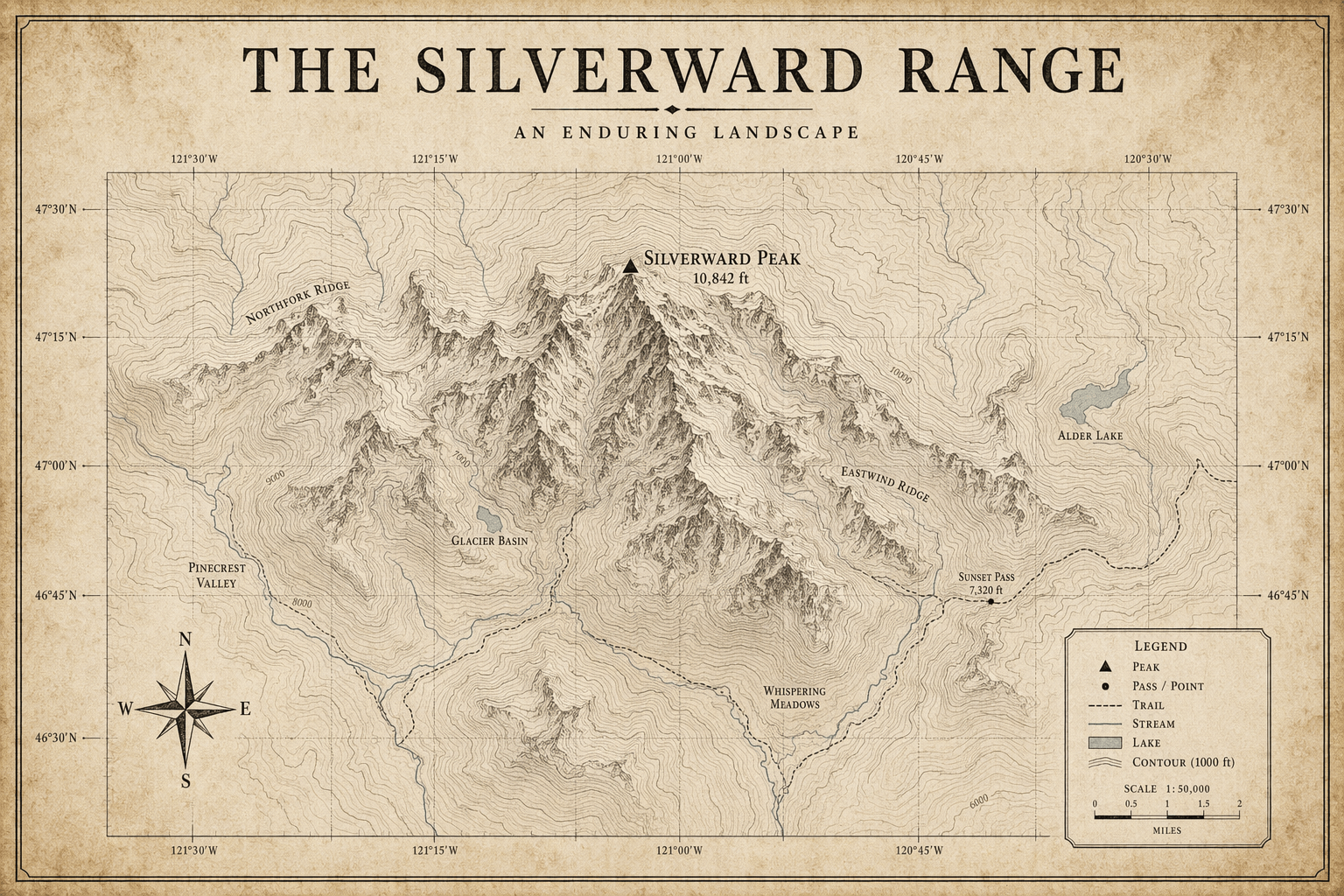
That makes the OpenAI family especially comfortable for design-adjacent work: posters, social graphics, product concepts, UI-style mockups, editorial layouts, campaign drafts, thumbnails, and visual explainers.
Model 1: GPT Image 1 Mini
GPT Image 1 Mini is the OpenAI model to use when the idea is still loose.
In Nenis, it costs 6 credits per output, so it is the best OpenAI option when you want more attempts without treating every image like a final render.
Use it for:
- Early prompt exploration.
- Simple social visuals.
- Moodboard images.
- Background ideas.
- Quick object or icon concepts.
- Low-stakes edits where speed and cost matter more than maximum fidelity.
Mini is not the model we would pick for a final ad with lots of text. It is the model we would pick for the first half-hour of creative wandering.
Model 2: GPT Image 1.5
GPT Image 1.5 is the useful middle.
OpenAI's model page describes GPT Image 1.5 as an image generation model that accepts text and image inputs and produces image outputs. In the broader OpenAI docs, the GPT Image family is positioned around stronger instruction following, text rendering, detailed editing, and real-world knowledge.
In Nenis, GPT Image 1.5 costs 25 credits per output, which makes it a better fit when the prompt has moved beyond "try a few ideas" and into "make this direction work."
Use it for:
- Product mockups.
- Lifestyle scenes.
- Better reference-image results.
- Social ads and thumbnails.
- Images with some embedded text.
- Polished drafts before a final GPT Image 2 pass.
GPT Image 1.5 is where the OpenAI workflow starts to feel deliberate.
Model 3: GPT Image 2
GPT Image 2 is OpenAI's current top image model.
OpenAI's model card calls it a state-of-the-art image generation model for fast, high-quality generation and editing, with flexible image sizes and high-fidelity image inputs. OpenAI introduced ChatGPT Images 2.0 on April 21, 2026 with examples focused on stronger precision, layout, multilingual typography, aspect ratios, and more polished creative outputs.
In Nenis, GPT Image 2 costs 40 credits per output, so it belongs in the serious stage of the workflow.
Use it when:
- The image includes important text.
- The layout needs to be coherent.
- Reference details matter.
- The visual needs to look final.
- You are making a campaign, poster, product asset, or editorial-style graphic.
GPT Image 2 is not the cheapest way to think. It is the best OpenAI option when the result has to land.
Which One Should You Start With?
Here is the practical decision tree:
| If your task sounds like this | Start here |
|---|---|
| "I need a bunch of rough directions." | GPT Image 1 Mini |
| "I like the idea, but it needs to look more intentional." | GPT Image 1.5 |
| "This needs readable text, careful layout, and final polish." | GPT Image 2 |
| "I am editing an existing image and want to preserve details." | GPT Image 1.5 or GPT Image 2 |
| "I am making a public-facing ad, poster, or product mockup." | GPT Image 2 |
The best Nenis workflow is rarely one model forever.
Start cheap. Improve the direction. Finish with the model that matches the stakes.
How To Prompt OpenAI Image Models In Nenis
OpenAI image models respond well to prompts that feel like compact creative briefs.
A useful prompt has:
- Asset type: poster, product photo, thumbnail, UI mockup, sticker, banner.
- Subject: what must appear.
- Reference rules: what uploaded images control.
- Composition: angle, crop, layout, aspect ratio.
- Style: photography, editorial, illustrated, clean vector, cinematic, handmade.
- Text: exact words, hierarchy, and placement.
- Preserve: identity, product shape, logo area, color, pose.
- Avoid: misspellings, extra objects, fake claims, warped logos.
Reusable prompt:
Create [asset type] for [use case].
Main subject: [subject or uploaded reference].
Composition: [crop, camera angle, layout, aspect ratio].
Style: [visual direction].
Text in image: "[exact text]" placed [where/how].
Preserve: [identity, product shape, logo area, colors].
Avoid: [misspelled text, clutter, extra objects, distorted details].
Where Canvas Fits
Use the Nenis Dashboard when you want to generate new assets and compare models. Use Canvas when you want to edit an existing image or keep refining a result.
For example:
- Generate rough directions with GPT Image 1 Mini.
- Pick the best idea and improve it with GPT Image 1.5.
- Bring the best result into Canvas for targeted editing.
- Use GPT Image 2 when the image needs final layout, text, or reference fidelity.
The takeaway
The OpenAI models in Nenis are easiest to understand as a creative ladder.
GPT Image 1 Mini is for fast exploration.
GPT Image 1.5 is for stronger creative control.
GPT Image 2 is for high-fidelity final assets.
Use them in that order when you are building a real visual: draft, refine, finish.
Sources and image credits
This article is based on OpenAI's official GPT Image 2 model card, GPT Image 1.5 model card, GPT Image 1 Mini model card, OpenAI's image generation guide, and OpenAI's ChatGPT Images 2.0 launch post. Images are official OpenAI examples from the API documentation and ChatGPT Images 2.0 launch materials.