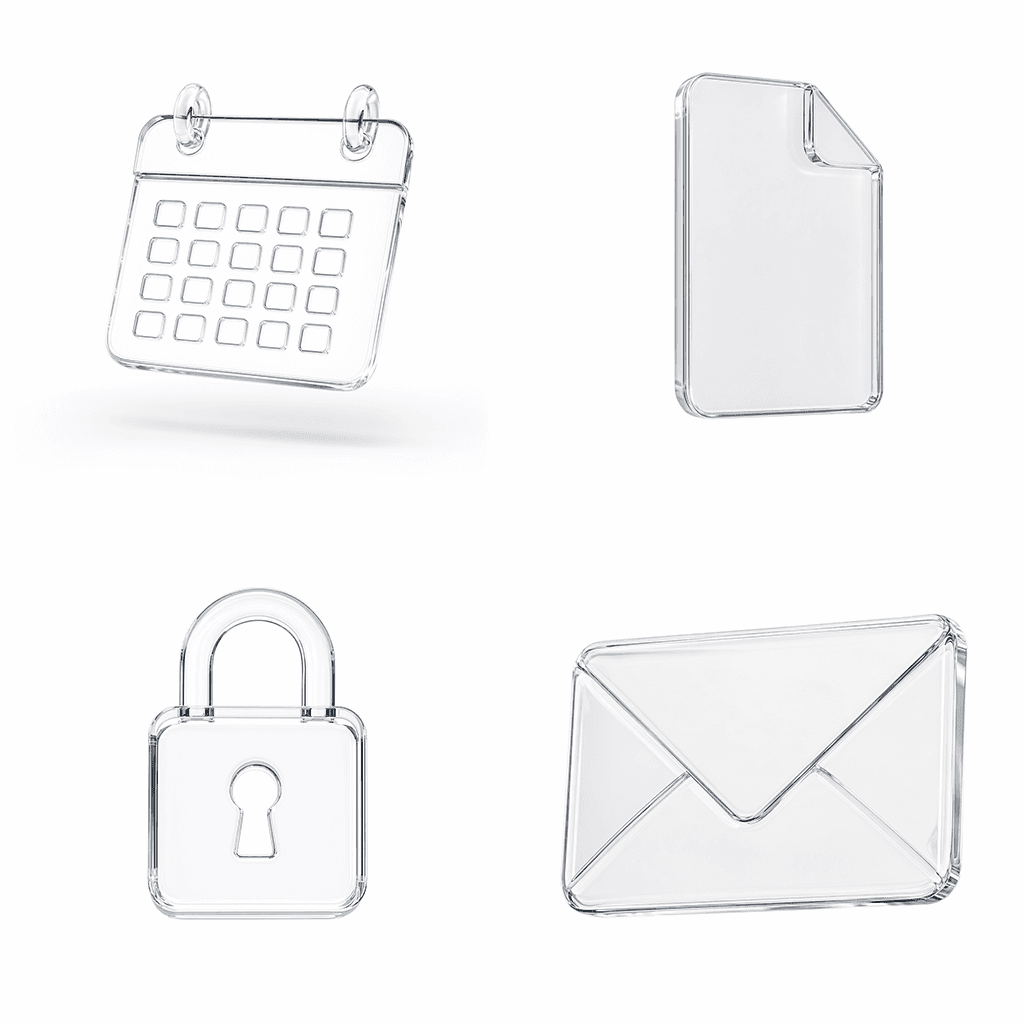
GPT Image 2: When to Use OpenAI's Best Image Model in Nenis
A practical guide to GPT Image 2 in Nenis: when to use OpenAI's state-of-the-art image model for final visuals, readable text, reference fidelity, layouts, and high-control edits.
GPT Image 2 is the OpenAI model you use when the image has to stop being an experiment and start behaving like a real asset.
OpenAI introduced ChatGPT Images 2.0 on April 21, 2026, and the API model card describes gpt-image-2 as OpenAI's state-of-the-art image generation model for fast, high-quality generation and editing. In Nenis, GPT Image 2 costs 40 credits per output, which makes it the model to save for the work that needs precision.
What Makes GPT Image 2 Different
The OpenAI docs highlight three things that matter for creators:
- It is the current state-of-the-art GPT Image model.
- It supports flexible image sizes.
- It processes image inputs at high fidelity automatically.
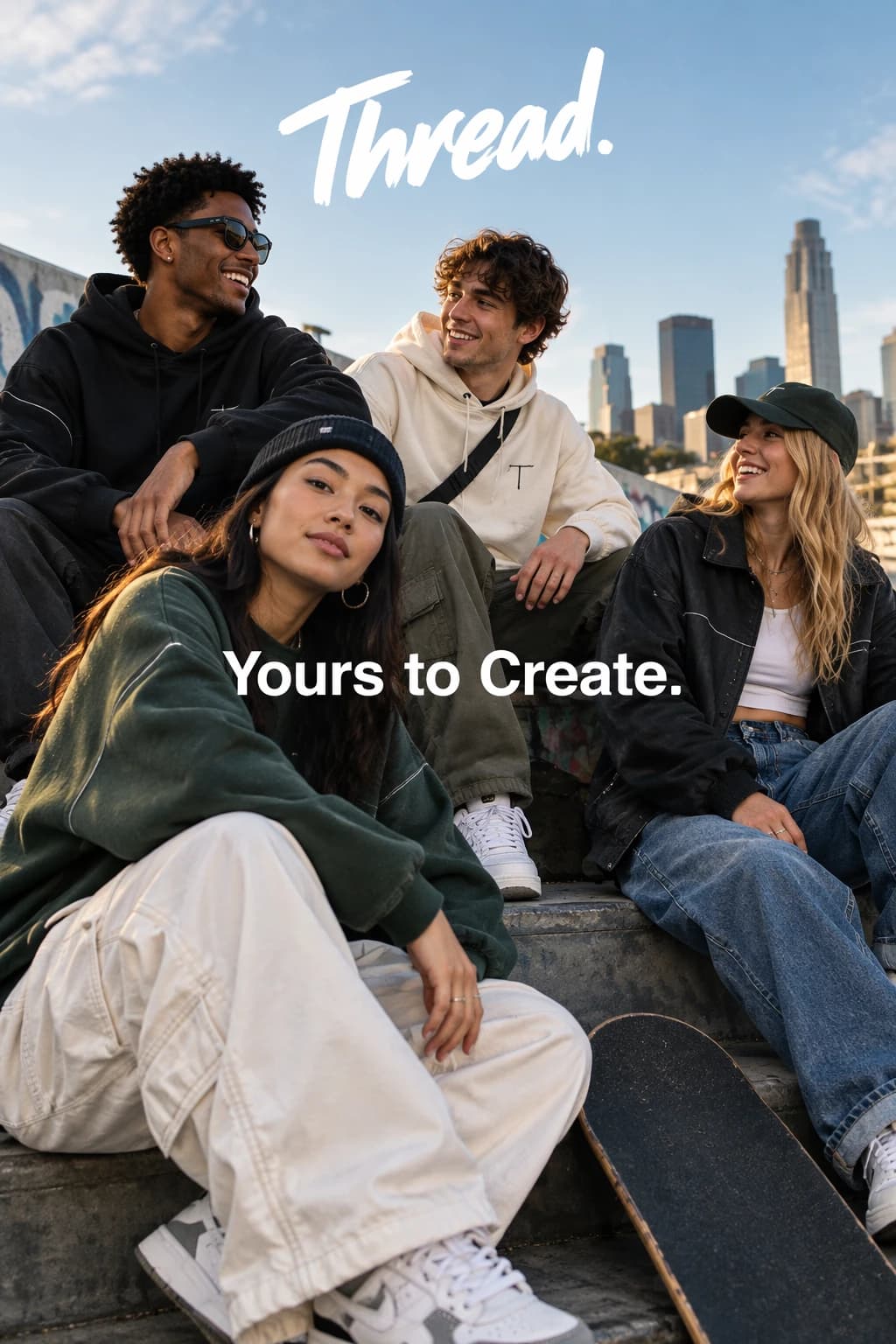
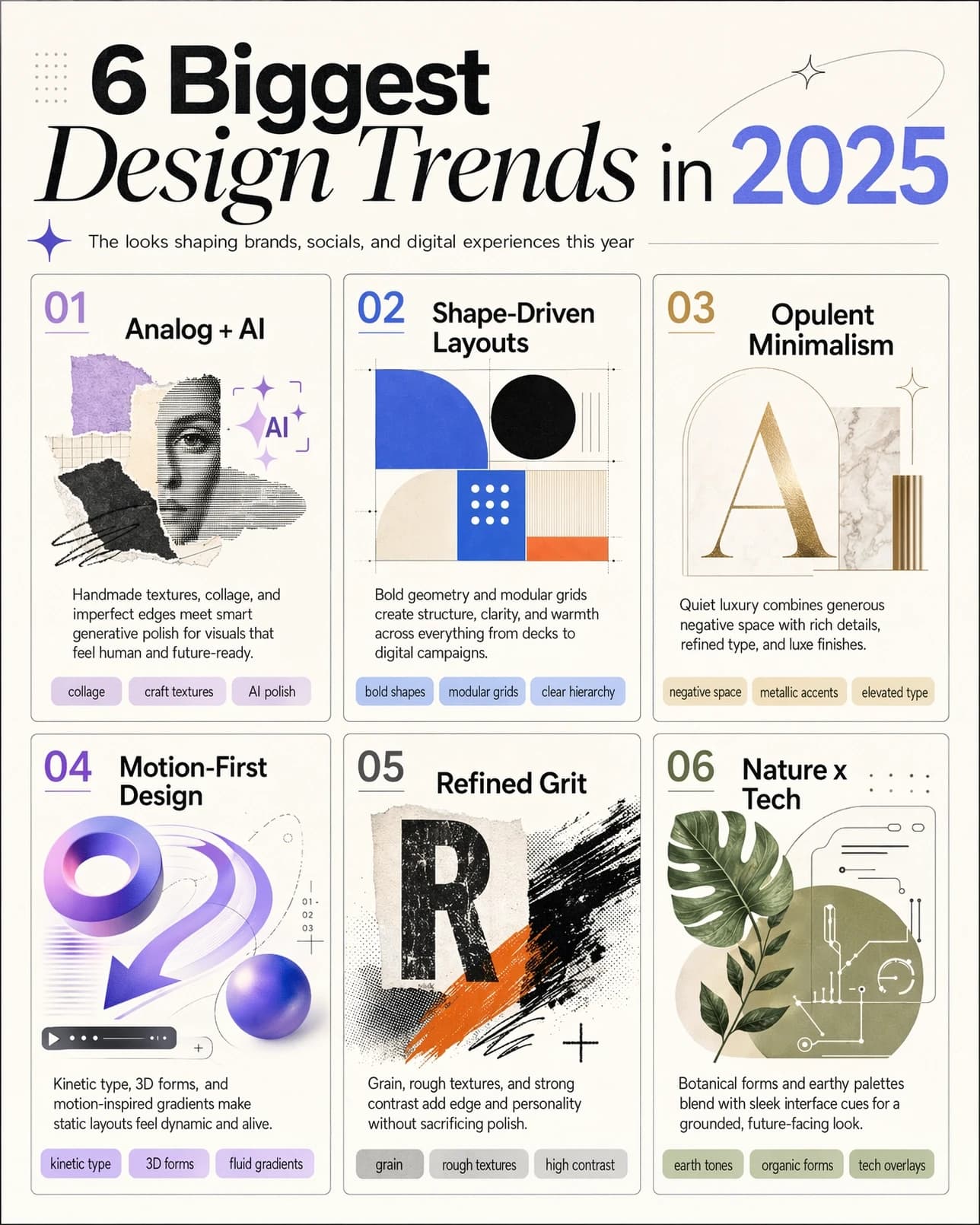
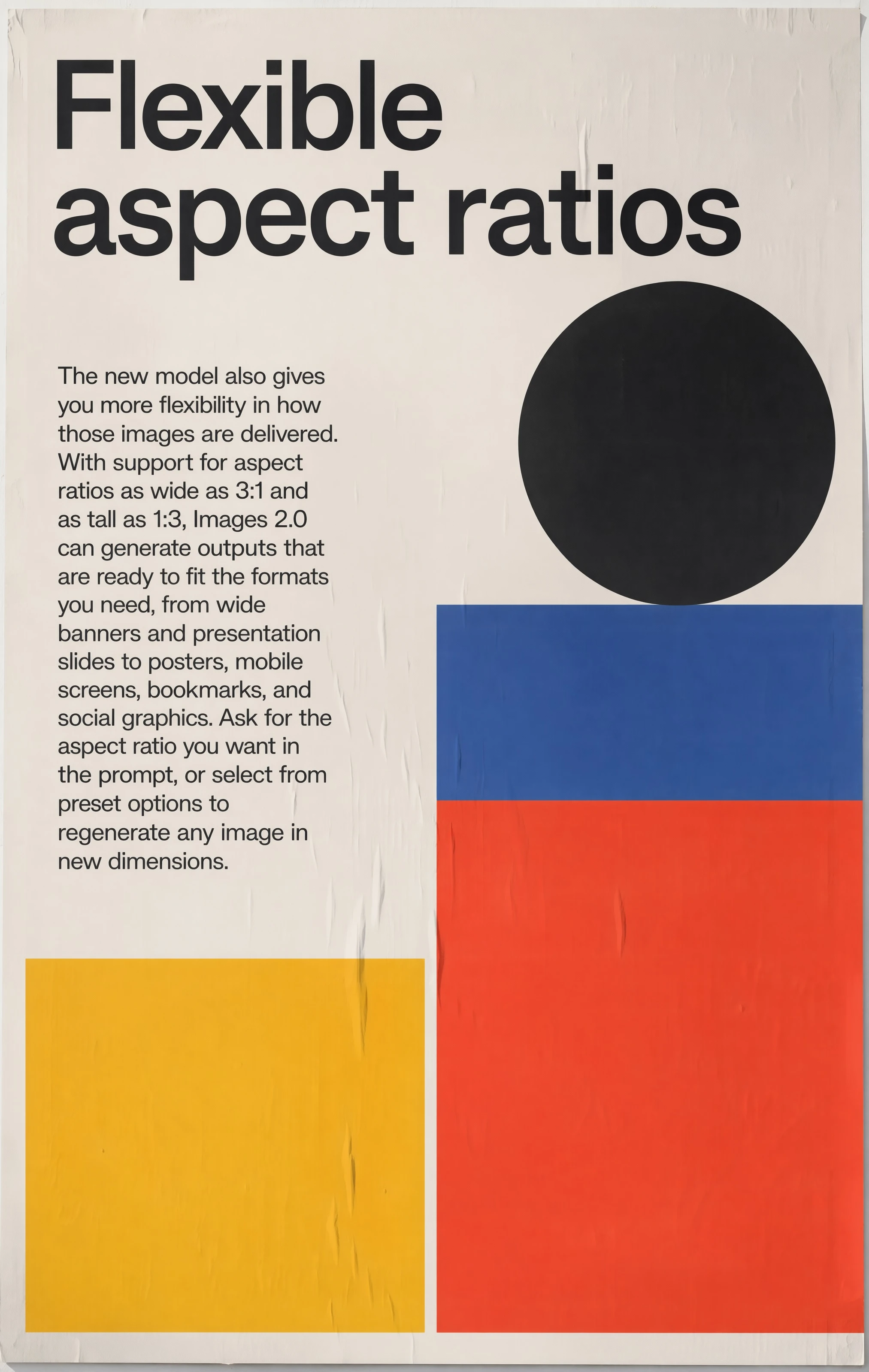
The ChatGPT Images 2.0 launch materials also show a clear emphasis on typography, multilingual text, aspect ratios, editorial layouts, infographics, posters, and design-ready outputs.
That is the real shift.
GPT Image 2 is not just for prettier pictures. It is for images with structure.
Best Uses In Nenis
Use GPT Image 2 when the output needs to hold up outside the generator.
| Use case | Why GPT Image 2 fits |
|---|---|
| Posters and ads | Better for layout, hierarchy, and visible text |
| Product campaigns | Stronger final polish and reference handling |
| Infographics | Useful for structured visual explanations |
| UI and dashboard mockups | Better at coherent screens and interface-like compositions |
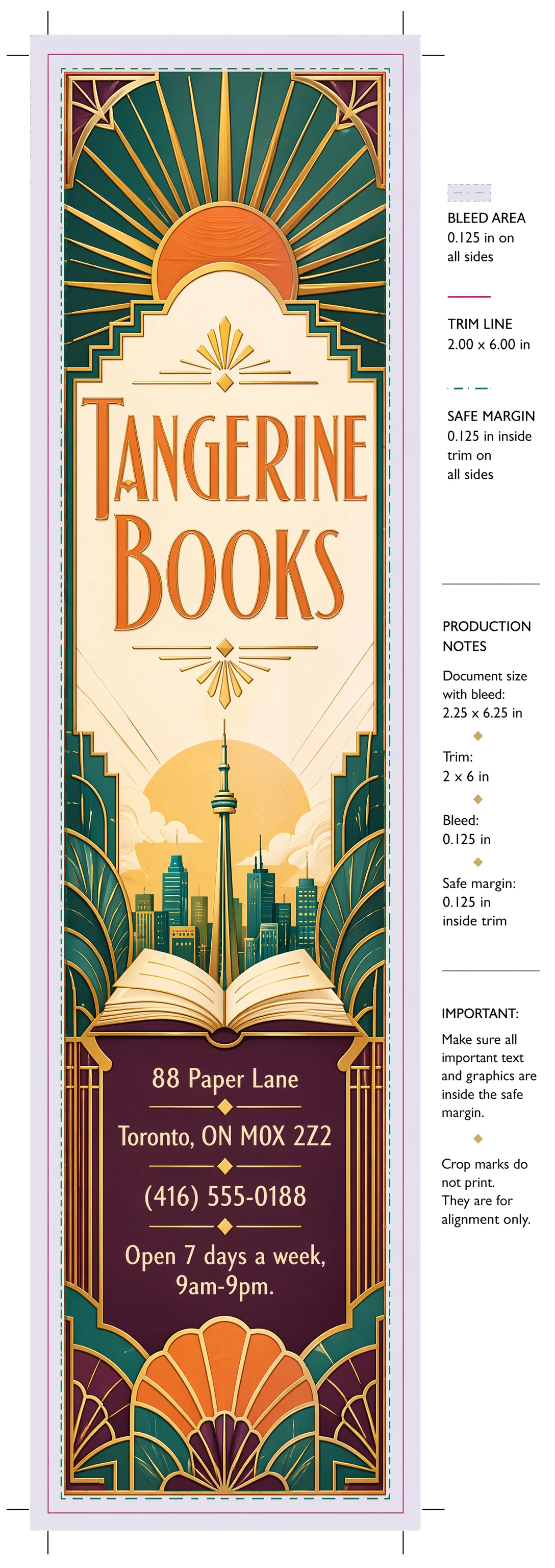
| Print-style assets | Good fit for bookmarks, flyers, covers, and editorial layouts |
| High-stakes edits | Strong image input fidelity for reference-driven work |
Text And Layout Are The Big Reasons
Many image models can make something beautiful.
Fewer can make something useful.
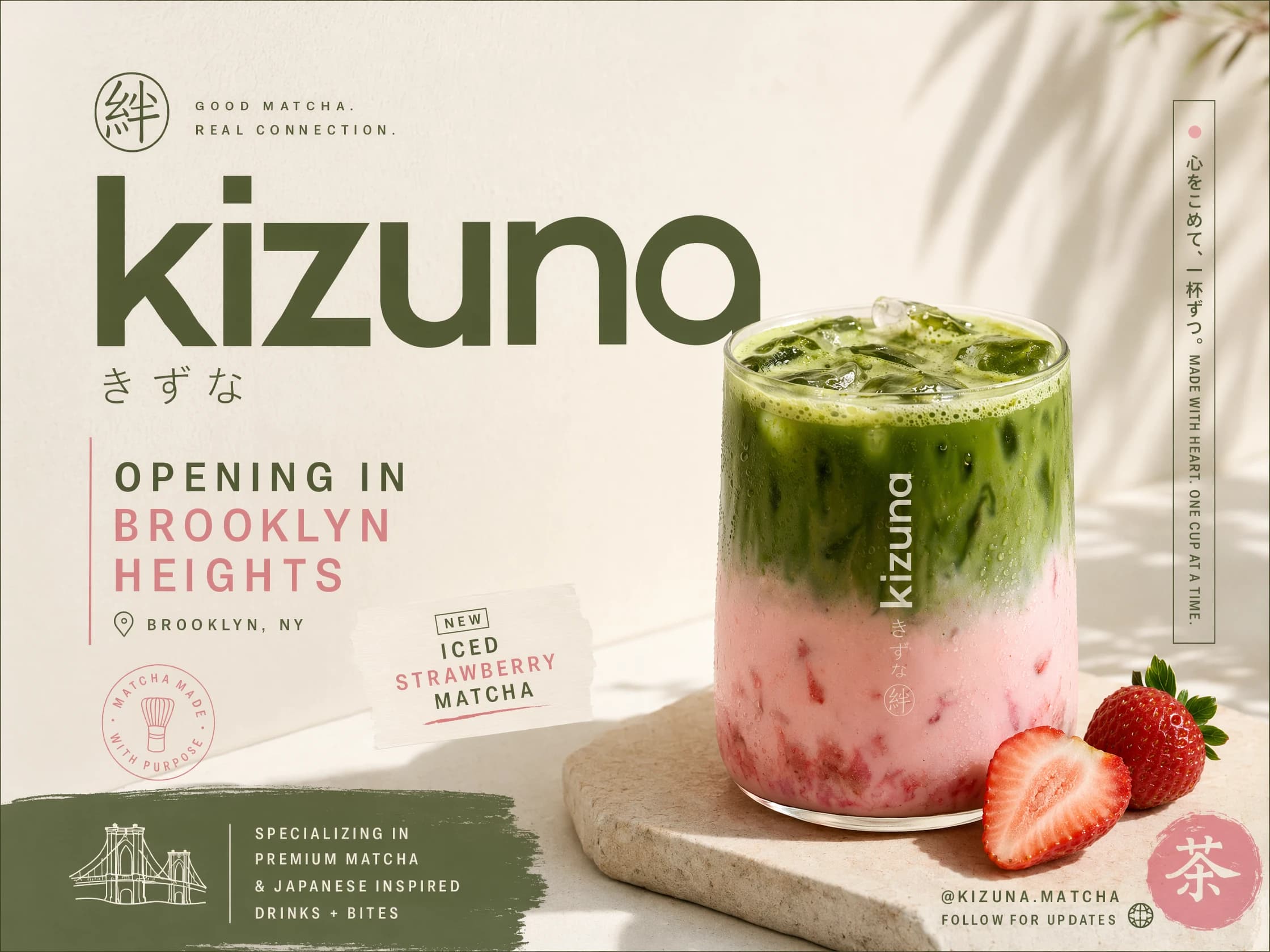
GPT Image 2 is especially interesting for creators because OpenAI's own launch examples lean into designed outputs: posters, menu-like graphics, educational explainers, multilingual typography, aspect-ratio posters, and campaign-style assets.
Use it when your prompt includes:
- A headline.
- A product name.
- A badge or label.
- A flyer layout.
- A UI screen.
- A multi-panel concept.
- An infographic structure.
Prompt example:
Create a vertical launch poster for a new matcha drink.
Headline: "KIZUNA MATCHA"
Subhead: "Opening in Brooklyn Heights"
Style: soft editorial product photography with Japanese-inspired typography.
Layout: large headline on the left, drink photo on the right, small location details near the bottom.
Preserve clean spacing and readable text.
Avoid misspellings, clutter, and extra fake brand marks.
High-Fidelity Inputs Matter
OpenAI's current image guide says GPT Image 2 processes every image input at high fidelity automatically. In practice, that matters when you bring references into Nenis.
Use GPT Image 2 when the uploaded image contains something important:
- A product.
- A package shape.
- A logo area.
- A room layout.
- A character design.
- A visual style reference.
- A previous campaign direction.
The trick is still to assign roles.
Use image 1 as the exact product reference.
Use image 2 only for lighting and background mood.
Use image 3 as the layout reference.
Create a 16:9 website hero image.
Preserve the product silhouette, label area, cap shape, and color.
The model is stronger, but it still benefits from a calm brief.
Good GPT Image 2 Prompts Feel Like Creative Direction
Do not write a vague prompt and hope the expensive model reads your mind.
Write like a creative director:
- What is the asset?
- Who is it for?
- What should stay fixed?
- What should change?
- What text must be visible?
- What format is needed?
- What should be avoided?
Prompt formula:
Create [asset type] for [audience/use case].
Main subject: [subject or reference image].
Composition: [layout, crop, aspect ratio].
Style: [visual direction].
Text in image: "[exact text]" with [hierarchy/placement].
Preserve: [important reference details].
Avoid: [misspellings, clutter, fake claims, distorted logos].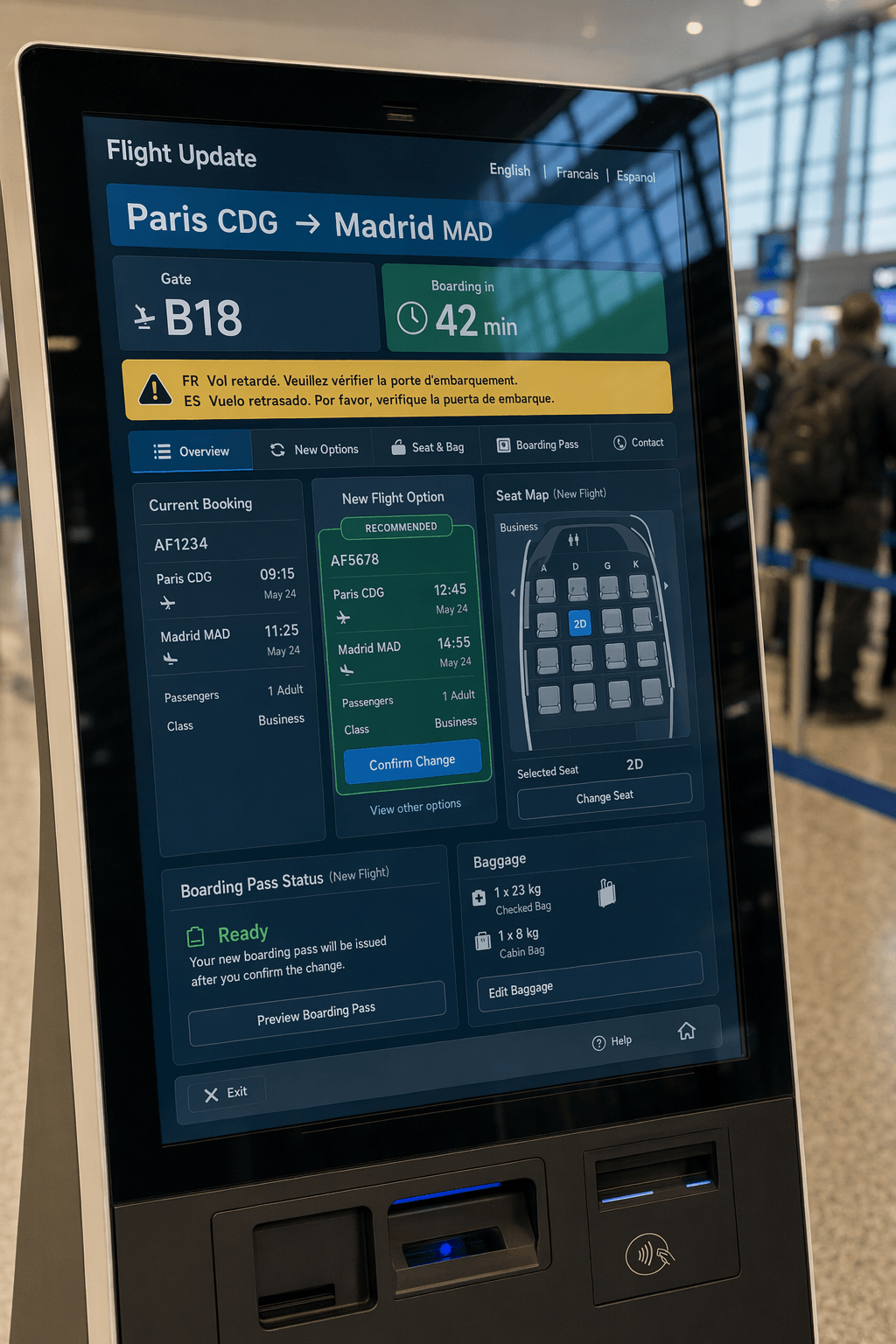
When Not To Use GPT Image 2
GPT Image 2 is powerful, but it is not always the most efficient first step.
Use GPT Image 1 Mini or GPT Image 1.5 first when:
- You are still searching for the idea.
- The image has no text or reference constraints.
- You need ten rough options.
- The output is just a moodboard piece.
- You are testing whether a prompt direction works.
Do not spend final-pass credits on first-pass uncertainty.
Use Canvas For Controlled Edits
GPT Image 2 is also a strong choice inside Nenis Canvas when you already have an image and need a careful edit.
Good Canvas requests:
- Replace the background but keep the product unchanged.
- Add a readable headline to this poster.
- Turn this square design into a vertical ad.
- Improve the lighting without changing the subject.
- Create a cleaner version of this layout.
The more important the source image is, the more useful GPT Image 2 becomes.
The takeaway
GPT Image 2 is the OpenAI model in Nenis for finished work.
Use it for text-heavy visuals, structured layouts, product campaigns, reference-led edits, UI-style concepts, infographics, and assets that need to look polished on the first serious pass.
If the image has a job, GPT Image 2 is the OpenAI model most likely to respect the brief.
Sources and image credits
This article is based on OpenAI's official GPT Image 2 model card, OpenAI's image generation guide, and OpenAI's ChatGPT Images 2.0 launch post from April 21, 2026. Images are official OpenAI examples from the API documentation and ChatGPT Images 2.0 launch materials.