How to Build a Virtual Wardrobe and Plan Outfits With Your Own Clothes
Turn photos of your clothes into a searchable digital closet, then arrange real garment cut-outs to plan complete outfits with Nenis Wardrobe.
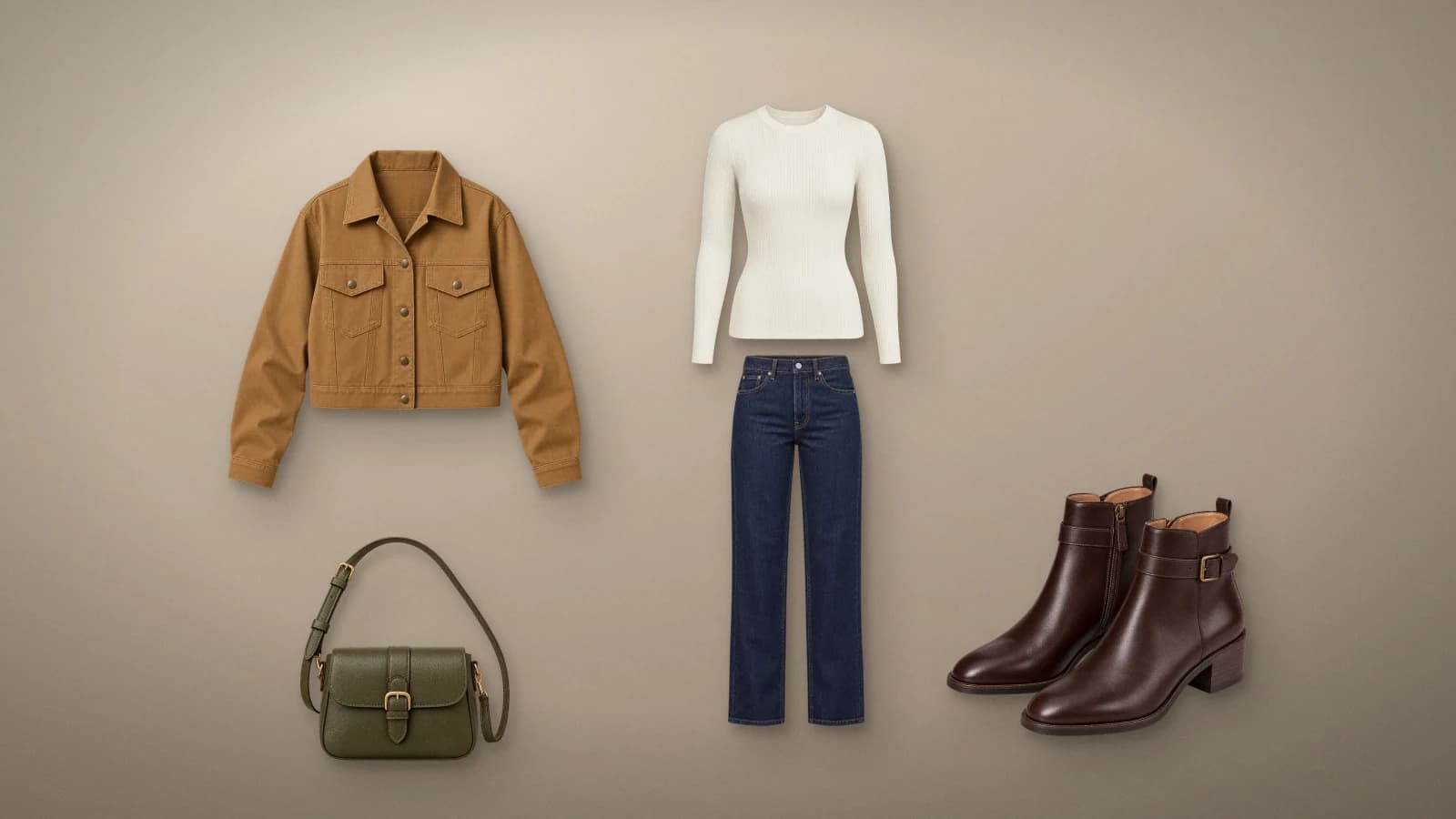
You can now turn photos of your own clothes into a searchable digital closet in Nenis, then arrange those real garment cut-outs on a freeform canvas to plan complete looks.
Nenis Wardrobe is built for a practical question: do these pieces work together? It helps you compare colour, silhouette, proportion, accessories, and layers before pulling everything out of the closet. It is not a body-based virtual try-on, and it does not claim to predict physical fit.
What is a virtual wardrobe?
A virtual wardrobe, sometimes called a digital closet, is an organised visual catalogue of the clothes you already own. Instead of relying on product links or trying to remember every item, you can browse photographs of your garments, search their details, and combine them into outfits.
Nenis Wardrobe brings three parts of that job together:
- Closet: upload garment photos and keep the finished cut-outs in one searchable place.
- Organisation: use automatic details or edit names, categories, colours, formality, labels, and notes yourself.
- Looks: combine up to 40 pieces and accessories on a visual canvas, then save the arrangement for later.
The result is closer to a flexible outfit planning board than a simple clothing list.
| Question | Nenis Wardrobe | Body-based virtual try-on |
|---|---|---|
| What does it use? | Cut-outs of your real garments | A person or body image plus garment images |
| What does it show? | How pieces coordinate together on a canvas | A generated interpretation of clothes on a body |
| Best for | Comparing colour, layers, silhouette, and accessories | Previewing a possible worn appearance |
| Does it confirm fit? | No | No generated preview can guarantee size, comfort, or physical fit |
How to build your digital closet
The setup is designed to work in batches rather than one item at a time.
- Open Nenis Wardrobe and choose Add items.
- Select up to 15 garment photos in one batch.
- Choose Cut out and tag if you want Nenis to remove the background and organise useful visible details automatically.
- Choose Just cut out the background if you prefer to name and tag everything yourself.
- Review the exact total before starting. A failed photo is not charged.
- Open any finished item to correct its name, category, details, or notes.
At launch, background removal costs 1 credit per item. Background removal with automatic details costs 2 credits per item. Nenis always shows the current per-item price and full batch total before processing, so the number on screen is the final reference if pricing changes later.
Take garment photos that produce cleaner cut-outs
The background remover can do its best work when the complete item is clearly visible. A careful phone photo is usually enough.
- Photograph one garment per image.
- Use a plain background that contrasts with the item. A dark jacket is easier to separate from a light wall than a dark bedspread.
- Keep the whole item inside the frame, including sleeves, hems, straps, and the full shape of shoes.
- Spread garments naturally instead of folding important details underneath.
- Avoid hard shadows crossing the item when possible.
- Photograph labels only when you want label information available for organisation.
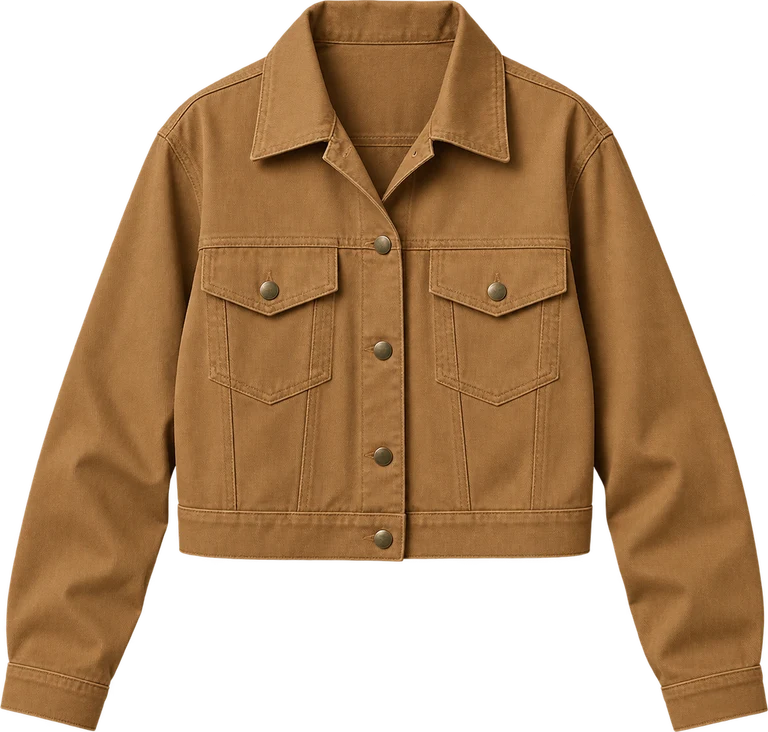
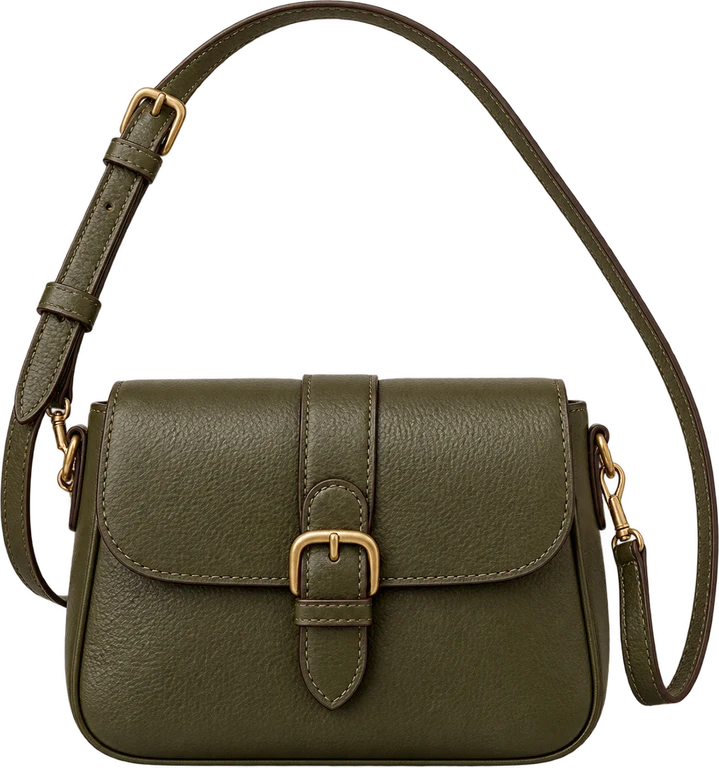
A clean cut-out is useful beyond appearance. It also makes different photos feel consistent when items are placed together in a saved look.
Organise clothes without making cataloguing a chore
Automatic details are meant to create a useful starting point, not lock your wardrobe into an AI decision. Nenis can identify visible information such as garment type, colour, pattern, formality, and label text, while keeping the result editable.
That distinction matters. A model can see that an item looks like a camel jacket, but personal information such as how you wear it, whether you consider it workwear, or which season it belongs in is better decided by you.
Use names and notes that match the way you search. “Blue shirt” is technically correct; “navy work shirt” will probably be more useful six months from now. You can filter the Closet, switch categories, and search your saved items when you need them again.
Plan an outfit on the Looks canvas
Once the Closet has a few useful pieces, open Looks and start a new outfit. Select garments and accessories from your closet, then use Auto arrange for a sensible first layout or place everything manually.
Every cut-out remains adjustable. You can:
- drag items anywhere on the canvas;
- resize a piece to compare visual proportion;
- rotate it in 15-degree steps;
- move it forward or backward to show layers;
- turn snapping or the body guide on and off;
- undo and redo changes; and
- add or remove closet items without starting the look again.
Save the finished look with a name, occasion, season, and optional notes. A travel outfit might include a reminder about the coat you plan to carry; a work look might record the meeting or dress code it was built for.
The canvas intentionally stays flexible. A jacket can sit over a top, shoes can stay side by side, and a bag or scarf can be placed where it is easy to judge the whole palette.
Useful ways to use an outfit planner
A digital closet becomes more valuable when it supports a recurring decision instead of becoming another archive you never open.
Plan a week of work outfits
Save a few reliable combinations by formality or day. This makes it easier to vary layers and accessories without rebuilding the same outfit each morning.
Pack for a trip
Build looks around a smaller set of pieces and check how often each item appears. If one pair of shoes or one jacket works across several outfits, it may deserve the space in your bag.
Compare seasonal layers
Place a coat, knit, trousers, and boots together before the weather changes. You can spot a colour or proportion that feels wrong without handling every item at once.
Rediscover clothes you already own
Searching a visual closet can surface a bag, shirt, or pair of shoes that disappeared from your normal rotation. Try it in a saved look before assuming you need something new.
Think before buying
Add a similar placeholder or compare a potential purchase with your existing palette. The Wardrobe does not make the buying decision for you, but it can reveal whether the new piece would actually create more outfits.
What Nenis Wardrobe does not do
Nenis does not render the outfit on your body. The canvas can help you judge visual coordination and relative proportion, but it cannot tell you whether a garment is the right size, feels comfortable, hangs a certain way, or works with your body in motion.
The source photo matters too. A cut-out created from a badly folded, cropped, or heavily shadowed item may not represent the garment clearly. Retaking one photo is often faster than trying to plan around an unclear result.
These limits are deliberate. Wardrobe focuses on organising your own clothes and making outfit planning visual, fast, and adjustable.
Frequently asked questions
Can I use photos of clothes I already own?
Yes. Nenis Wardrobe is designed around photos of your own garments and accessories rather than a retailer catalogue.
How many clothes can I upload at once?
You can currently choose up to 15 photos in one batch. Use one garment per photo.
Does Nenis organise the clothes automatically?
You can choose automatic details when adding a batch, or request background removal only and organise the items yourself. Automatically created information remains editable.
Can I save outfits?
Yes. Looks keep the items and their canvas positions, and can also include a name, occasion, seasons, and notes.
Is this a virtual try-on app?
No. Nenis Wardrobe arranges real garment cut-outs on a visual planning canvas. It does not generate an image of the clothing on a person or claim to predict physical fit.
Do I need a subscription?
No. Nenis uses pay-as-you-go credits with no subscription, automatic renewal, or ads. Credits do not expire.
Start with one useful part of your closet
The best first Wardrobe is not necessarily the biggest. Photograph ten to fifteen pieces that already belong in the same part of your life—work, travel, everyday wear, or an upcoming season—then build two or three looks from them.
That small test will show which names, categories, and photos are actually useful to you. From there, expand the Closet at your own pace and keep the system organised around decisions you really make.
Sources and image credits
Feature behaviour, limits, and launch pricing were verified against the live Nenis Wardrobe experience and current Nenis production implementation on August 23, 2026. Product behaviour and pricing can change; the amount shown inside Nenis before processing is authoritative. The hero is a flat-lay composed from the same Nenis Wardrobe demonstration cut-outs used throughout the article. Garment cut-outs are Nenis product demonstration assets.