Gemini Omni 1.1 Flash: Complete AI Video Generation Guide
A complete guide to Gemini Omni 1.1 Flash in Nenis: text-to-video, image animation, first and last frames, references, editing, extension, audio, credits, privacy, limits, and regional restrictions.
Gemini Omni 1.1 Flash is Google's stable model for generating, directing, editing, and extending short videos through natural-language instructions.
Nenis supports the model through a dedicated video workspace rather than presenting it as another image option. You can begin with text, animate one image, control the first and last frames, provide reference images or clips, edit a video, or continue a scene. The output includes audio and can be generated from 3 to 10 seconds, at 360p, 720p, 1080p, or 4K.
The short answer is that Omni is unusually broad for one video model. The equally important answer is that some capabilities have regional, duration, privacy, and input restrictions. This guide covers both.
What Gemini Omni 1.1 Flash is
Gemini Omni Flash is a multimodal video model. It can use text, images, and video together to create a new MP4 video, and it generates a matching audio track as part of the result.
Google highlights three ideas behind the model:
- Native multimodality: text, images, video, and generated audio are handled as parts of the same request.
- Conversational editing: a generated result can be refined with another natural-language instruction while the model retains the earlier interaction.
- World knowledge: prompts can draw on Gemini's understanding of objects, physical motion, places, history, science, and cultural context.
It is important to separate native generated audio from audio-reference uploads. Omni can create dialogue, ambience, sound effects, and music for a generated video, but the current API does not accept a separate uploaded audio file as a reference.
Gemini Omni video settings in Nenis
| Control | Available in Nenis |
|---|---|
| Model | Gemini Omni 1.1 Flash |
| Output duration | 3–10 seconds |
| Frame rate | 24 FPS |
| Aspect ratios | 16:9 landscape and 9:16 portrait |
| Resolution | 360p, 720p, 1080p, or 4K |
| Output format | MP4 with generated audio |
| Results per request | One video |
| Starting images | One image, or separate first and last frames |
| Reference media | Up to 6 images and 3 video clips |
| Reference-clip length | Up to 3 seconds per clip |
| Uploaded Edit/Extend source | One video up to 10 seconds, subject to regional restrictions |
| Maximum extended result | Approximately 40 seconds |
Google describes 720p as the native default. The 1080p and 4K options are upscaled outputs. A larger output is useful for delivery, but it should not be interpreted as four times more generated scene detail.
Six ways to create video in Nenis
1. Text to video
Text to video starts with a written scene description and no uploaded media. Omni creates the visuals and an audio track together.
A useful prompt describes the scene, movement, camera, light, and sound:
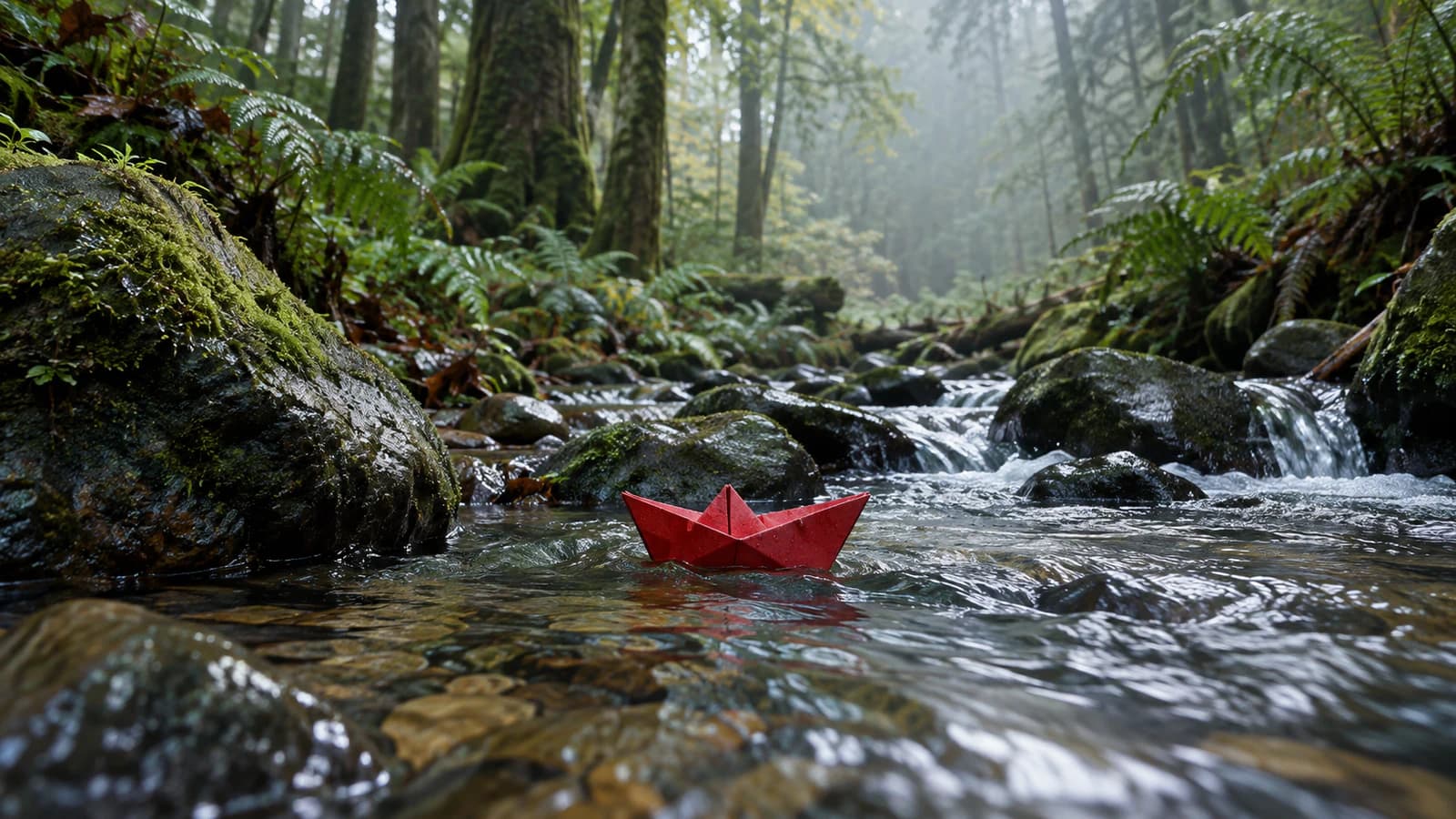
Single continuous shot of a bright red paper boat travelling along a shallow
forest stream after rain. The camera follows at water level while droplets fall
from the leaves and create small ripples. Soft morning light, natural colors.
Sound design: moving water, light rain from the canopy, distant birds. No dialogue.
By default, Omni may construct a short sequence with multiple shots. Add phrases such as “single continuous shot,” “single unbroken scene,” and “no scene cuts” when one coherent camera take matters.
2. Animate an image
Upload one starting image and describe what should move. The image can be a photograph, product shot, illustration, or generated Nenis result.
Specific motion works better than “make this move.” Separate the subject, camera, environment, and preservation requirements:
The camera makes a slow half-circle around the perfume bottle. Condensation
glistens subtly on the glass and the fabric behind it moves in a gentle breeze.
Keep the bottle shape, cap, label, colors, and written text unchanged.
Sound design: quiet room tone and a soft glass chime. No dialogue.
A high-resolution starting image gives the model more reliable visual information. Image-to-video can still introduce changes between frames, especially to small writing, hands, faces, patterned surfaces, and precise product geometry, so review the entire clip rather than only its opening frame.
3. First and last frames
This mode supplies two images: where the video begins and where it should finish. Omni generates the movement between them.
It is useful for:
- A day-to-night transition
- Moving from a wide shot to a close-up
- A product changing state
- A character moving between two poses
- A designed opening and closing composition
The prompt should explain how the transition happens, not merely describe the two images again.
Begin exactly from the first frame. The camera moves slowly forward as the
empty theatre lights turn on row by row. Dust becomes visible in the beams.
Finish naturally on the supplied final frame without a sudden cut.
Sound design: electrical clicks, quiet room ambience, then a restrained musical rise.
Interpolation guides the endpoints; it does not guarantee that every intermediate frame will preserve every detail perfectly.
4. Generate with references
Reference mode is for creating a new scene while retaining the likeness or visual role of supplied subjects and objects. Nenis accepts up to six reference images and three reference video clips, with each clip limited to three seconds.
Assign each reference a clear job:
Use image 1 as the character reference and preserve the coat, hair, and facial
features. Use image 2 as the motorcycle reference and preserve its proportions
and red paint. Use the reference clip only for the calm walking pace.

Create a single continuous side-tracking shot of the character walking toward
the parked motorcycle on a foggy coastal road. No dialogue. Keep the movement natural.
Audio from a reference video is ignored. Google also cautions that reasoning across several separate videos is not currently supported, so references should establish appearance or motion rather than ask the model to compare multiple clips or reconstruct a long sequence from them.
5. Edit a video
Omni can apply a written change while attempting to preserve the rest of a generated video. Depending on region, it can also edit an uploaded video no longer than 10 seconds.
Simple edit instructions work best:
Change the jacket from red to dark green. Keep everything else the same.Other useful edits include changing the light, replacing a background, removing an object, changing visible sign text, or applying a visual style. An edit produces a new video version; it does not modify the original file destructively.
For generated Nenis videos, follow-up editing requires the Google interaction history associated with that generation to remain available. Nenis lets you control this in Settings → Video privacy.
6. Extend a video
Extend continues the scene at the end of a video. It cannot prepend a scene or insert new footage into the middle.
Each extension can add between 3 and 10 seconds, while Nenis prevents the combined video from exceeding approximately 40 seconds. Omni uses the end of the existing clip as context and may adjust some final frames to make the continuation smoother.
Continue the same shot. The cyclist reaches the top of the hill and stops to
look over the city as the music becomes quieter. Preserve the same person,
bicycle, weather, camera style, and time of day.
You can also introduce a referenced subject during an extension. As with editing, extending an outside uploaded video is region-restricted, while continuing a video generated by Omni through its stored interaction is supported in available regions.
Native audio, dialogue, music, and timing
Omni normally attempts to create audio that fits the visuals. If audio matters, describe it rather than leaving the choice implicit.
You can request:
- Environmental ambience
- Sound effects tied to visible actions
- Background music and its mood
- Spoken dialogue
- Silence or no dialogue
- Changes in sound at particular moments
[0–3s] A ceramic cup sits beside a rain-covered window. Quiet rainfall and room ambience.
[3–6s] A hand lifts the cup. Add a soft ceramic sound; the music begins gently.
[6–9s] The camera turns toward the city outside. The music opens into a warm final chord.
No dialogue.
Natural-language timing such as “after three seconds” also works. Timing is directional rather than frame-accurate, so allow room for the model to connect events naturally.
Omni can render requested text inside a video, but every visible word should still be proofread. Quote the exact wording and prohibit additional copy when accuracy matters.
Gemini Omni credits in Nenis
Video price changes with resolution and duration. The following table is the base output price for one video without reference-image or reference-video input.
| Duration | 360p | 720p | 1080p | 4K |
|---|---|---|---|---|
| 3 seconds | 17 | 45 | 66 | 129 |
| 4 seconds | 22 | 59 | 87 | 171 |
| 5 seconds | 27 | 73 | 108 | 213 |
| 6 seconds | 31 | 87 | 129 | 255 |
| 7 seconds | 36 | 101 | 150 | 297 |
| 8 seconds | 41 | 115 | 171 | 340 |
| 9 seconds | 45 | 129 | 192 | 382 |
| 10 seconds | 50 | 143 | 213 | 424 |
Reference media adds an input charge. Images are charged per supplied image; reference and source videos are charged using their verified duration. Nenis combines those input costs with the selected output, rounds the assembled total once, and shows the exact credit requirement before you generate.
Google's direct Gemini API has no free tier for Omni 1.1 Flash. Its published 720p output rate is approximately $0.10 per generated second, before accounting for input media and text or reasoning output. Nenis credits include the provider work, job processing, storage, and delivery rather than mirroring the API invoice line by line.
Editing history and privacy in Nenis
Conversational editing depends on stored provider interaction state. By default, Nenis keeps the Google interaction and required files for up to seven days so a generated video can be edited or extended without rebuilding it from scratch.
You remain in control:
- Disable Keep video edit history for 7 days in Settings for new generations.
- Remove a video's provider editing history earlier from Gallery.
- Delete the saved Nenis asset whenever you choose.
- Disabling or removing provider history does not delete the finished copy already stored in your private Nenis gallery.
If edit history is disabled when a video is created, the finished video remains usable and downloadable, but later conversational edits and extensions that require the original interaction will not be available.
Only the prompt and media required for generation are sent to Google. Nenis does not send Google your email address, name, or payment information as part of a generation request. See the Nenis privacy policy for the complete processing and retention explanation.
Regional restrictions
Google makes the Gemini API available across a broad list of supported countries and territories, but some Omni operations have additional restrictions.
EEA, Switzerland, and the United Kingdom
For users in the European Economic Area, Switzerland, and the United Kingdom:
- Editing or extending an uploaded outside video is not currently available.
- Editing or extending a video generated by Omni is supported while its provider interaction history remains available.
- Uploading and editing images containing minors is not supported.
These are model-provider restrictions, not limitations invented by the Nenis interface. Nenis uses the country information supplied by its delivery infrastructure to enforce uploaded-video restrictions and does not store that country value solely for this check.
Other location and account considerations
- The Gemini API itself is available only in Google's supported regions.
- Provider safety behavior may differ by region.
- Certain recognizable people may not be accepted even where the general feature is available.
- A blocked prompt or input is not evidence that video generation is unavailable throughout the user's country.
Consult Google's current Gemini API region list because availability can change after this article is published.
What Gemini Omni cannot currently do
| Limitation | What it means in practice |
|---|---|
| Only landscape and portrait | Output is limited to 16:9 and 9:16; square and custom ratios are not available. |
| One output per request | A variation requires another generation. |
| 3–10 second initial output | Longer stories require extension. |
| 40-second extended result in Nenis | Extend cannot create an unlimited-length video. |
| End-only extension | It cannot prepend footage or insert a scene into the middle. |
| Uploaded source up to 10 seconds | Longer outside videos cannot be submitted for Edit or Extend. |
| No uploaded audio reference | You cannot supply a separate song, voice, or sound file for imitation. |
| No voice editing | It cannot directly replace or transform an existing voice track. |
| Reference-video audio ignored | Reference clips guide visuals or motion, not sound identity. |
| No added dialogue after uploaded speech | An uploaded talking video cannot be extended with more spoken dialogue. |
| No reliable multi-video reasoning | Several clips should not be treated as a timeline for comparison or reconstruction. |
| No YouTube URL input | Downloaded or authorized media must be provided through the supported upload flow. |
| No separate negative-prompt field | Put instructions such as “no dialogue” directly in the normal prompt. |
| English is the evaluated language | Other prompt languages may work, but Google does not promise equal reliability. |
Generation can also fail because of safety filters, unsupported recognizable people, malformed media, provider capacity, or a prompt that asks for a prohibited result. Generation time varies with clip length, resolution, and current service load.
SynthID and AI provenance
Every Gemini Omni-generated video contains Google's invisible SynthID watermark. It is not a visible corner logo and should not affect ordinary playback, but compatible systems can detect it as provenance information indicating AI generation.
SynthID does not replace a creator's responsibility to label synthetic or materially altered media where a platform, client, law, or context requires disclosure.
A practical Omni prompt structure
Use this structure as a starting point rather than filling the prompt with camera terminology that does not affect the intended result:
Format: [single continuous shot or multi-shot sequence].
Scene: [subject, action, location, and time of day].
Camera: [framing and one clear movement].
Motion: [subject movement and environmental movement].
Preserve: [identity, product details, text, colors, or composition].
Audio: [ambience, effects, music, dialogue, or no dialogue].
Timing: [optional events at natural-language times].
Avoid: [specific unwanted additions or changes].
For edits, shorter is often better:
[Make one precise change]. Keep everything else the same.For image animation, say what must remain stable. For references, explain the role of each item. For extensions, repeat the identity, camera, and audio characteristics that should continue into the new section.
Is Gemini Omni 1.1 Flash the right video model for you?
Choose it when you want one approachable workspace for both creation and follow-up changes:
- Generate a short video from an idea
- Turn an existing image into motion
- Design both endpoints of a transition
- Use visual references for characters, products, or movement
- Revise a generated video conversationally
- Continue a scene without beginning again
- Generate visuals and sound together
It is less suitable when you need square output, frame-accurate professional editing, a supplied music or voice reference, edits inside a long uploaded clip, or unrestricted control over an existing person's likeness.
Nenis exposes the model's useful decisions—mode, inputs, prompt, ratio, duration, and resolution—while handling API requests, provider state, storage, pricing, and gallery history behind the interface. You can open the Nenis video workspace and choose the mode that matches the source material you already have.
Sources and image credits
- Google AI for Developers: Generate and edit videos with Gemini Omni Flash
- Google AI for Developers: Gemini Omni Flash model details
- Google AI for Developers: Gemini API pricing
- Google AI for Developers: Available regions
- Google AI for Developers: Model deprecations
The hero image was generated specifically for this Nenis article. Google model behavior, pricing, and availability can change. Nenis modes, privacy controls, limits, and credits were verified against the production implementation on September 16, 2026.